
In this article:
Clearing cache is one of the easiest ways to fix buffering, slow loading, or freezing issues in your IPTV app. If your channels lag, playlists fail to load, or EPG data is missing, a quick cache reset can make your streaming experience smooth again.
Every time you use an IPTV app, it stores temporary files, images, and channel data to improve performance. Over time, this cache can become cluttered or corrupted, causing:
Clearing cache removes these temporary files while keeping your IPTV subscription, login, and favorites intact. Clearing cache can instantly restore your smooth, premium experience without missing a beat.
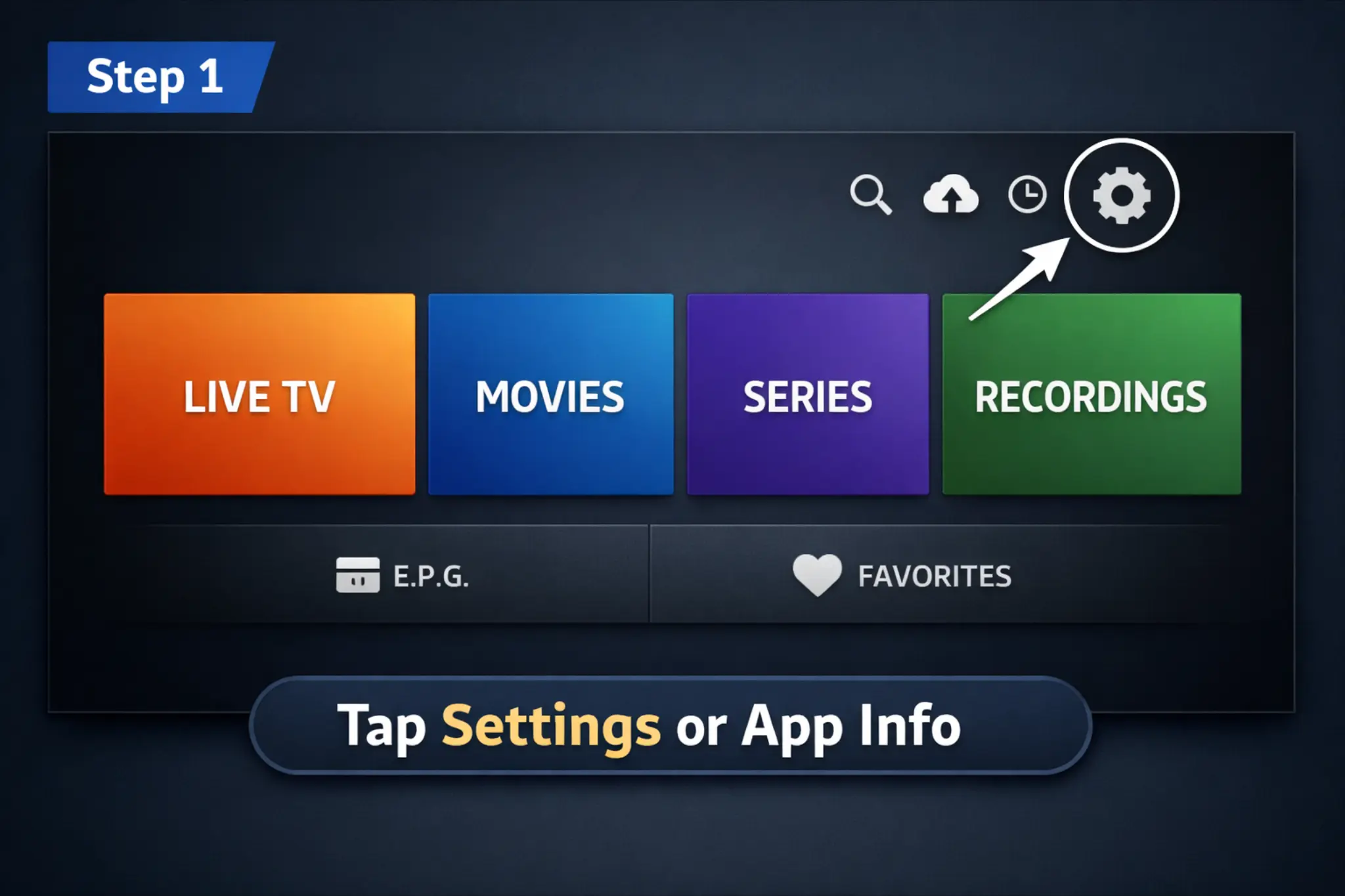
Tap the Settings icon (gear) or App Info on your IPTV app home screen. This works for Android, iOS, and Smart TVs.
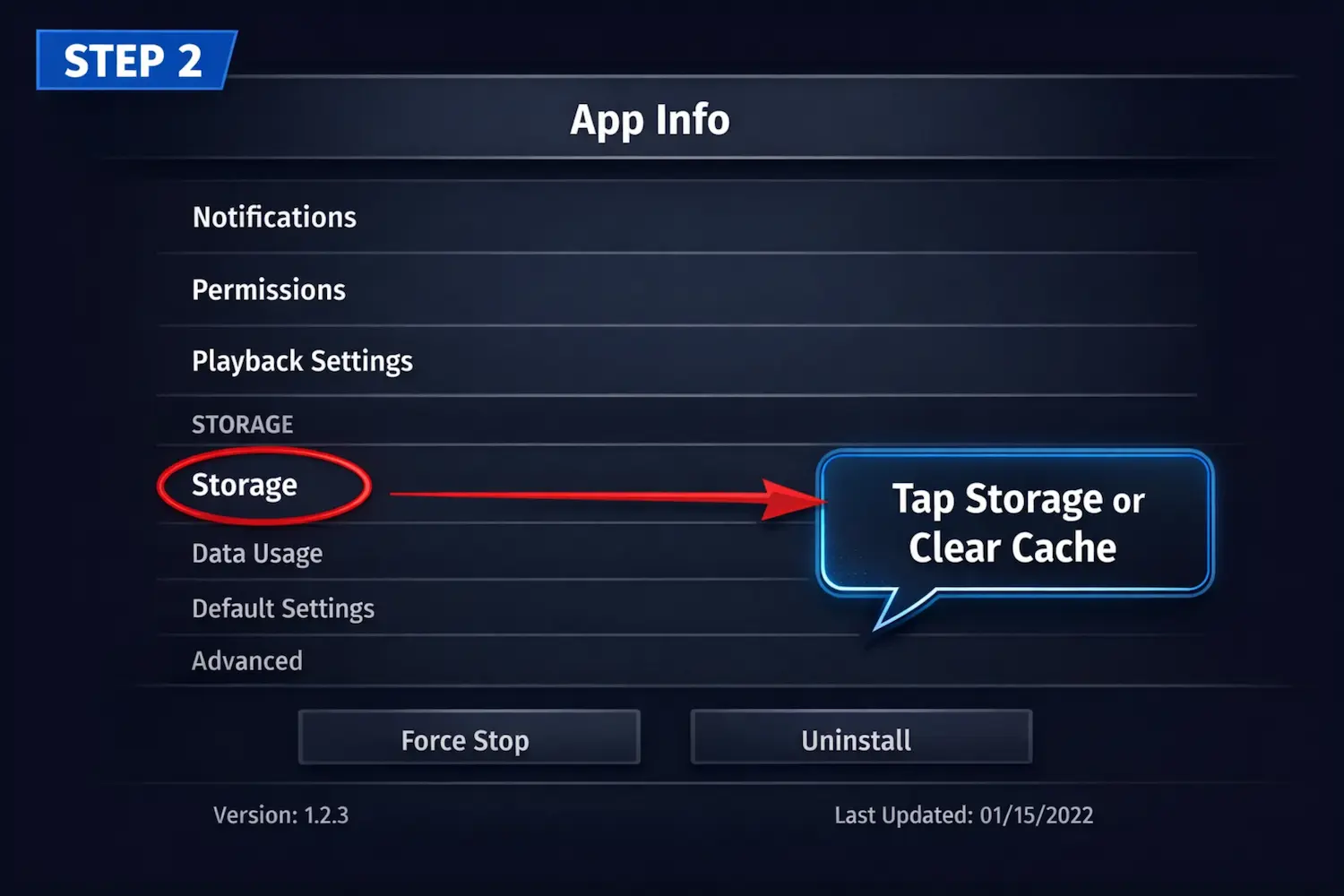
Navigate to Storage in Settings or App Info. This opens the section where cache and app data can be managed.
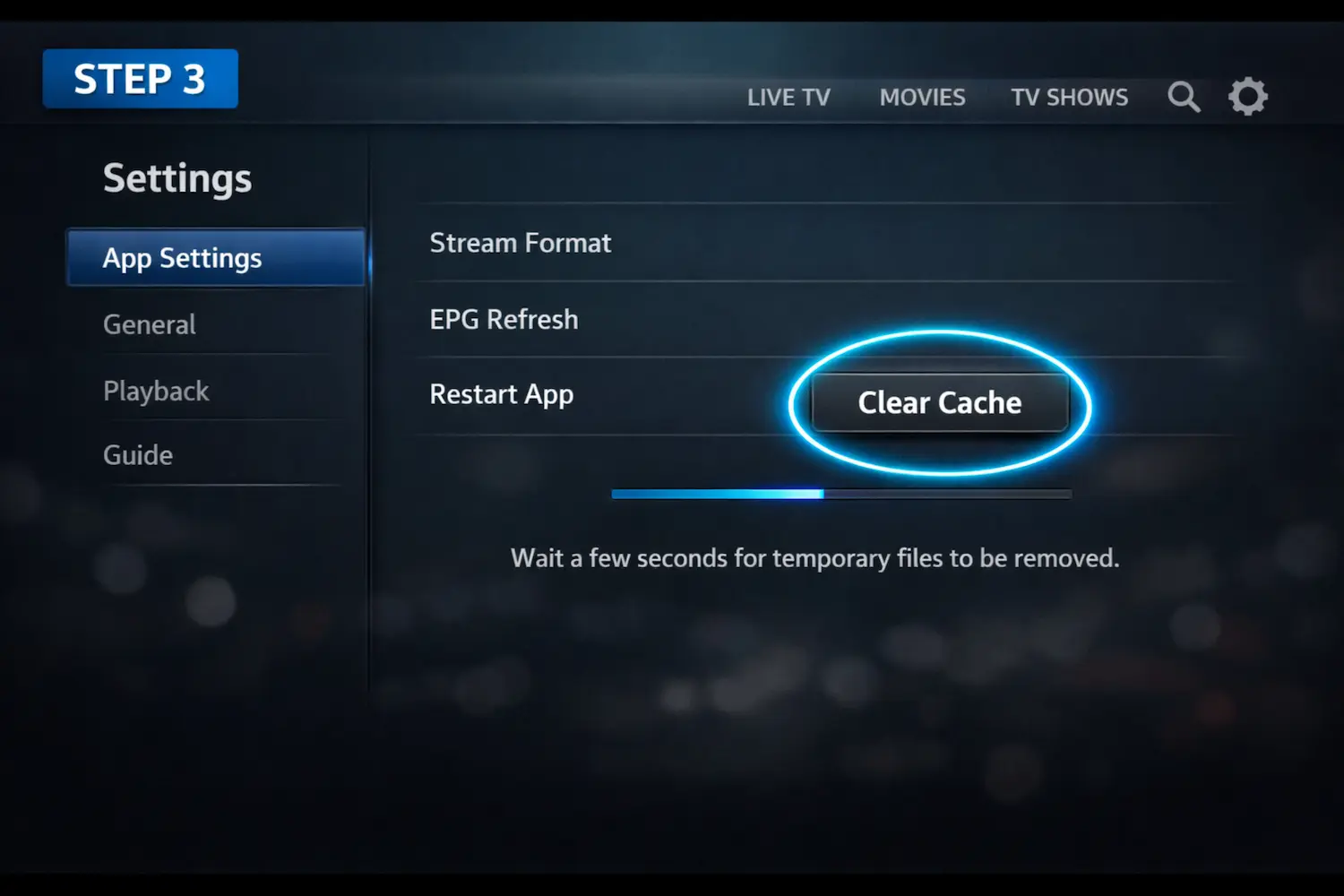
Initiate cache clearing and wait a few seconds for temporary files to be removed. You will see a progress bar showing the process.
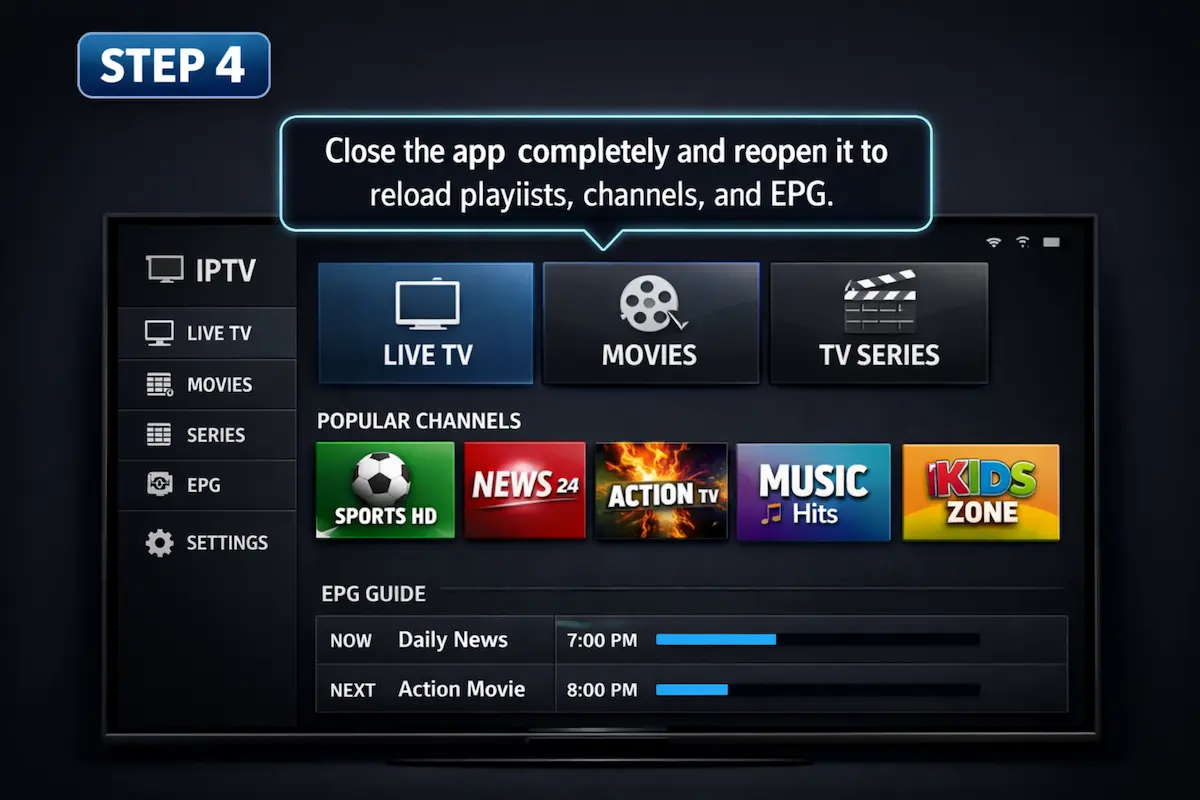
Close the app completely and reopen it to reload your playlists, channels, and EPG data.
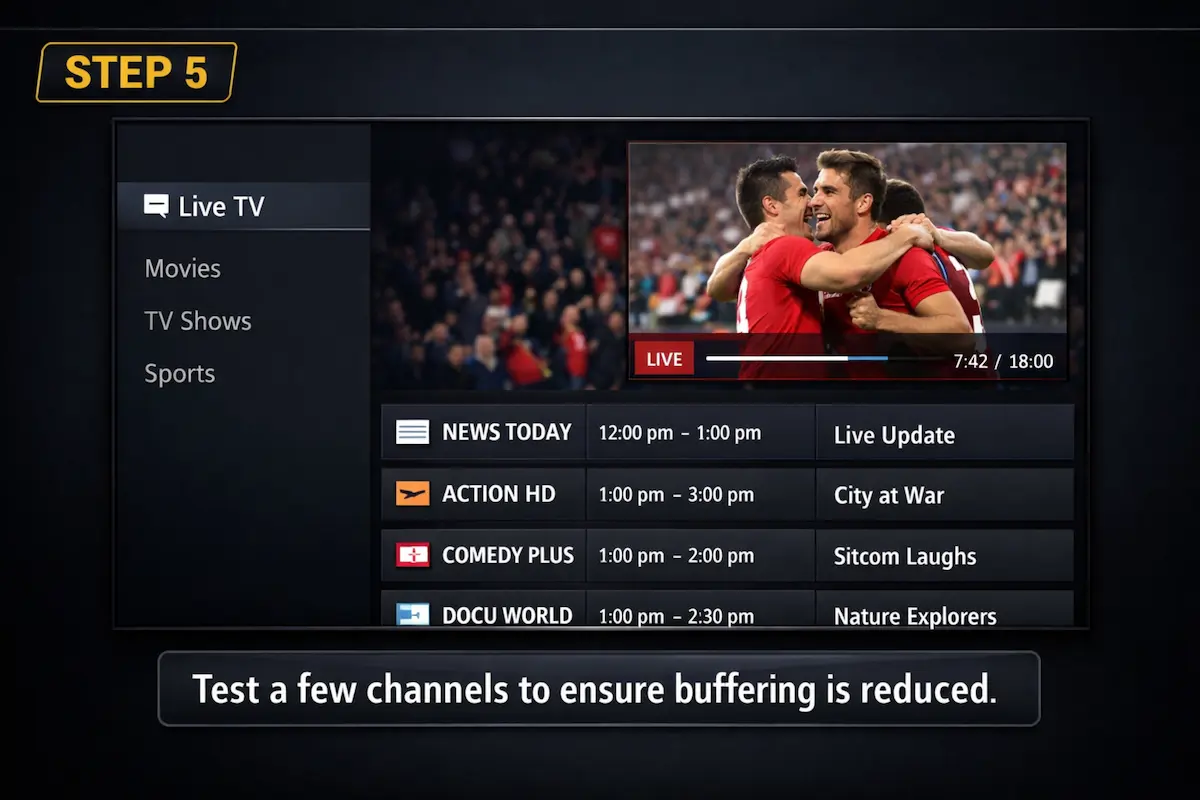
Test a few channels to ensure buffering is reduced. Make sure channels load smoothly and the EPG displays correctly.