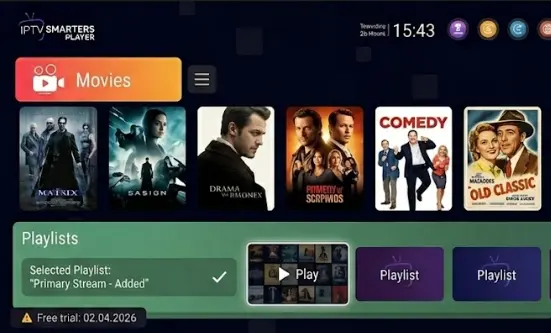
Many viewers in Canada are moving away from complicated cable setups and choosing flexible streaming solutions that put
live channels, movies, series, and sports in one easy place.
- What IPTV Smarters Player Does
- Prepare Your Smart TV
- Installation Steps
- Configure Roxtv
- Improve Stream Quality
- Troubleshooting
- FAQ
IPTV Smarters Player is one of the most popular apps for managing IPTV content on Smart TVs.
It gives you a clean interface, quick navigation, live TV access, Video on Demand support, and Electronic
Program Guide features.
The app itself is only the player. Your viewing quality depends on the IPTV service connected to it.
That is why pairing IPTV Smarters Player with a reliable provider like
Roxtv
can help create a smoother, more stable streaming experience on your Smart TV.
Key takeaway: This guide shows you how to install IPTV Smarters Player on Smart TV,
prepare your device, add your subscription credentials, improve stream quality, and fix common playback issues.
Understanding the IPTV Smarters Player Ecosystem
IPTV Smarters Player works as a media management app. It does not provide channels by itself.
Instead, it helps you access and organize content from your IPTV subscription using login details
such as Xtream Codes or an M3U playlist.
For many Canadian viewers, this makes it easier to keep live TV, movies, sports, and series inside
one app instead of jumping between different platforms.
Why IPTV Smarters Player Is Popular for Smart TVs
IPTV Smarters Player is popular because it is simple, organized, and built for everyday viewing.
Instead of scrolling through messy lists, users can browse live TV, movies, series, catch-up content,
and program schedules from a single dashboard.
- Clean live TV categories
- Support for movies and series
- EPG program guide access
- Multi-screen support on some versions
- Parental control options
- Compatibility with several Smart TV platforms
- Simple subscription login setup
If you prefer a lighter version of the app, you can also read the
Smarters Player Lite installation guide before choosing the best player for your device.
Smart TV Compatibility
IPTV Smarters Player works on many popular devices and TV systems, although availability depends on your
model, operating system, and app store region.
Common TV Platforms
- Android TV
- Google TV
- Samsung Smart TV
- LG Smart TV
Other Supported Devices
- Fire TV devices
- Android boxes
- Windows devices
- Compatible IPTV boxes
Preparing Your Smart TV for Installation
Before installing IPTV Smarters Player on Smart TV, take a few minutes to prepare your device.
A proper setup helps avoid login errors, buffering, and playback interruptions later.
Check Your Internet Speed
Your internet connection has a direct impact on IPTV performance. A slow or unstable connection can cause
buffering, freezing, or low-quality playback, especially during live sports or 4K viewing.
| Streaming Quality |
Recommended Speed |
| SD |
5 Mbps or higher |
| HD |
10 Mbps or higher |
| Full HD |
15 Mbps or higher |
| 4K |
25 Mbps or higher |
For the most stable experience, use an Ethernet cable when possible. Wi-Fi can work well, but a wired
connection is usually better for live TV, hockey nights, movie nights, and high-definition streams.
Update Your Smart TV
Make sure your Smart TV software is up to date before installing the app. Updates can improve app compatibility,
fix system bugs, and prevent installation issues.
Go to your TV settings, check for software updates, and restart your device after the update finishes.
Enable Installation from Unknown Sources on Android TV
If you use an Android TV, Google TV, or Android box, you may need to allow app installation from unknown sources.
- Open Settings
- Go to Security or Apps
- Select Install Unknown Apps
- Choose your browser or downloader app
- Allow installation permission
Only download app files from trusted sources. Avoid random APK websites, modified apps, or cracked versions,
as they can create security and performance risks.
Samsung and LG Smart TV Notes
Samsung and LG TVs use their own operating systems, so the installation process can be different from Android TV.
For Samsung Smart TV, check the Samsung app store. For LG Smart TV, check the LG Content Store.
If IPTV Smarters Player is not available in your region, you may need to use a compatible external device
such as Firestick, Android TV box, Google TV, or another supported streaming device.
LG users who want another compatible app option can also review the
IBO Player on LG setup guide.
Step-by-Step Guide to Installing IPTV Smarters Player
The installation method depends on your Smart TV type. Below are the most common options.
Method 1: Install from the Official App Store
This is the easiest and safest method when the app is available on your TV.
- Turn on your Smart TV
- Open the app store
- Search for IPTV Smarters Player
- Select the official app
- Click Install
- Wait for the installation to finish
- Open the app from your home screen
Once the app opens, you should see a login screen where you can enter your IPTV subscription details.
Method 2: Install on Android TV Using a Downloader App
If IPTV Smarters Player is not available in your Android TV app store, you may be able to install it manually.
- Install a trusted downloader app from the Google Play Store
- Open the downloader app
- Enter the official IPTV Smarters Player download source
- Download the installation file
- Confirm the installation
- Open IPTV Smarters Player
- Enter your subscription credentials
This method is commonly used on Android TV boxes, Google TV devices, and Fire TV-style setups.
Method 3: Use an External Streaming Device
Some Smart TVs have limited app support. In that case, an external streaming device can make installation easier.
- Android TV box
- Google TV device
- Fire TV device
- Formuler device
- Compatible IPTV box
Android TV and IPTV box users who prefer another interface can compare this setup with the
XCIPTV Player guide.
After installation, the next step is connecting your IPTV subscription. IPTV Smarters Player needs valid login
details from your provider.
What You Need Before Login
- Username
- Password
- Server URL
- M3U playlist URL, if provided
- Xtream Codes API details, if provided
Your provider should give you these details after signup.
How to Add Your Roxtv Subscription
- Open IPTV Smarters Player
- Select Login with Xtream Codes API
- Enter any profile name, such as Roxtv
- Add your username
- Add your password
- Enter the server URL
- Click Add User
- Wait for the app to load live TV, movies, and series
Make sure every detail is typed exactly as provided. IPTV login fields are often case-sensitive, and one small
typo can stop the app from connecting.
Why the Provider Matters
IPTV Smarters Player is only the software interface. The actual streaming experience depends on the IPTV provider
connected to the app.
- More stable playback
- Faster channel loading
- Cleaner live TV categories
- Better support
- Smoother HD and 4K viewing
- Less frustration during sports and peak hours
Roxtv
is positioned for Canadian viewers who want a simple IPTV setup for Smart TVs, live channels, sports,
movies, and family entertainment without relying on traditional cable pressure.
Ready to Connect IPTV Smarters Player?
Install the app, prepare your Smart TV, then visit Roxtv to set up your IPTV subscription
and start streaming on your preferred device.
Get Started with Roxtv
Optimizing Stream Quality on Smart TV
Once the app is installed and your subscription is connected, a few settings can make the experience smoother.
Use Ethernet When Possible
A wired Ethernet connection is usually more stable than Wi-Fi. This matters most when watching live sports,
4K movies, or long weekend viewing sessions.
Adjust Buffer Settings
Some IPTV player apps allow buffer adjustments. Increasing the buffer can help reduce small interruptions caused
by temporary network drops. Do not set the buffer too high, because it may delay channel switching.
Restart the App After Setup
After adding your subscription, close and reopen IPTV Smarters Player. This helps refresh the channel list,
VOD section, and EPG data.
Keep the App Updated
Older versions may create playback errors or compatibility issues. Check your app store regularly for updates,
especially if you notice login problems, freezing, or missing categories.
Navigating the IPTV Smarters Player Interface
IPTV Smarters Player is designed to make content easier to browse. Once your Roxtv credentials are added,
your dashboard will usually show several sections.
Live TV
The Live TV section lets you browse channels by category. Depending on your subscription, categories may include
sports, news, entertainment, kids, movies, French channels, Canadian channels, and international channels.
- Add favourite channels
- Hide unused categories if the app allows it
- Use the search function
- Group sports and movie channels for quick access
Movies and Series
The VOD section gives access to on-demand content included with your subscription. This is useful for movie nights,
binge watching, family entertainment, and weekend viewing.
Electronic Program Guide
The EPG shows what is currently playing and what is coming next. This is especially useful for live sports,
news, and scheduled programs.
Advanced Features and Customization
Parental Controls
Parental controls help protect younger viewers from restricted content. You can set a PIN and limit access
to selected categories.
Multiple Profiles
If different people in your home use the same TV, profiles can help keep favourites, watch history,
and preferences separate.
Interface Customization
Some versions allow you to adjust the layout, theme, or player settings. A cleaner interface makes daily viewing
faster, especially if your household watches a mix of live TV, sports, movies, and series.
Troubleshooting Common IPTV Smarters Player Issues
Login Error or Authentication Failed
- Confirm your username
- Confirm your password
- Check the server URL
- Make sure there are no extra spaces
- Restart the app
- Restart your TV or device
- Confirm your subscription is active
Buffering or Freezing
Buffering usually comes from internet speed, Wi-Fi instability, overloaded devices, or provider issues. For a deeper fix, read this guide on
how to stop IPTV buffering before your next game night or movie night.
- Restart your router
- Use Ethernet instead of Wi-Fi
- Close background apps
- Clear the app cache
- Reduce stream quality temporarily
- Restart your Smart TV
- Test another channel
App Crashing
- Update the app
- Restart the TV
- Clear app cache
- Uninstall and reinstall the app
- Check available storage
- Update your Smart TV software
EPG Not Loading
- Refresh the playlist
- Restart the app
- Wait for the EPG to sync
- Check provider settings
- Confirm the EPG is included with your subscription
IPTV Smarters Player on Other Devices
IPTV Player for Android
Android devices are among the easiest for IPTV setup because they support more installation options.
Android TV, Google TV, Android boxes, and mobile devices usually offer more flexibility than closed TV systems.
IPTV Player for Windows
If you want to watch on a laptop or desktop, you can use a compatible IPTV player for Windows.
This is useful when you want to move from the living room to a home office, bedroom, or travel setup.
Free IPTV Player vs Paid IPTV Service
A free IPTV player is only the app. It does not guarantee channel quality, uptime, support, or content organization.
For a better experience, the player should be paired with a stable IPTV service.
Why Pair IPTV Smarters Player with Roxtv?
The app gives you the interface. The provider gives you the actual viewing experience.
Roxtv is designed for viewers who want a simple IPTV setup that works across common devices. Instead of dealing
with confusing apps, unstable links, or poorly organized channel lists, you can connect your subscription to
IPTV Smarters Player and start watching through a familiar dashboard.
Benefits of Using Roxtv with IPTV Smarters Player
- Live TV access through a clean player interface
- Sports nights, movie nights, and family viewing
- French and English content options depending on subscription
- Smart TV, Android TV, and Windows flexibility
- HD and 4K-capable streams depending on device and connection
Start Streaming with Roxtv
Once IPTV Smarters Player is installed, the next step is choosing a provider that supports a stable viewing
experience. Visit Roxtv to explore subscription options and connect your details inside IPTV Smarters Player.
Visit Roxtv
Conclusion
Installing IPTV Smarters Player on Smart TV is a simple way to organize live TV, movies, series, and program
guides in one place. With the right setup, your Smart TV can become a cleaner and more flexible entertainment
hub for everyday viewing.
The most important thing to remember is that IPTV Smarters Player is only the app. Your streaming quality depends
on your internet connection, device performance, and IPTV provider.
By preparing your Smart TV properly, using a stable connection, entering your subscription details correctly,
and pairing the app with a provider like
Roxtv,
you can enjoy a smoother IPTV experience at home.
FAQ
What is IPTV Smarters Player?
IPTV Smarters Player is an IPTV player app that lets users organize and watch content from their IPTV subscription.
It supports live TV, movies, series, and EPG features, depending on the provider.
Does IPTV Smarters Player provide channels?
No. IPTV Smarters Player does not provide channels by itself. You need an active IPTV subscription from a provider
such as Roxtv to access content inside the app.
Can I install IPTV Smarters Player on Samsung Smart TV?
Some Samsung Smart TVs may support IPTV Smarters Player through the Samsung app store, depending on model and region.
If it is not available, you can use an external device such as Android TV, Google TV, or Fire TV.
Can I install IPTV Smarters Player on LG Smart TV?
Some LG Smart TVs may support IPTV Smarters Player through the LG Content Store. Availability depends on your TV model
and region. If the app is not listed, an external streaming device may be the easiest solution.
Is IPTV Smarters Player available for Android TV?
Yes. IPTV Smarters Player is commonly used on Android TV, Google TV, Android boxes, and similar devices.
Android-based systems usually offer more flexible installation options.
What internet speed do I need for IPTV Smarters Player?
For smooth viewing, aim for at least 10 Mbps for HD and 25 Mbps or higher for 4K. A wired Ethernet connection
is recommended when possible.
Why is IPTV Smarters Player buffering?
Buffering can happen because of slow internet, weak Wi-Fi, an overloaded device, app cache issues, or provider-side
problems. Restart your router, use Ethernet, clear the app cache, and test multiple channels.
How do I add Roxtv to IPTV Smarters Player?
Open IPTV Smarters Player, choose the Xtream Codes or M3U login option, and enter the subscription details provided
by Roxtv. Make sure the username, password, and server URL are entered exactly as provided.
Can I use IPTV Smarters Player on Windows?
Yes. You can use a compatible IPTV player for Windows if you want to watch on a desktop or laptop.
This gives you more flexibility beyond your Smart TV.
Where can I get a reliable IPTV subscription for IPTV Smarters Player?
You can visit Roxtv
to explore IPTV subscription options for Smart TVs, Android devices, Windows devices, and other supported platforms.
Install IPTV Smarters Pro
Need the full Smarters app setup? Follow this guide to install and configure IPTV Smarters Pro with your IPTV login details.
Read IPTV Smarters Pro guide
Refresh EPG in Smarters Player Lite
If your TV guide is missing or not updating, this guide explains how to refresh EPG data inside Smarters Player Lite.
Fix EPG guide
IPTV Smarters Pro on LG Smart TV
LG users can follow this dedicated setup guide for installing and using IPTV Smarters Pro on an LG Smart TV.
Read LG Smart TV guide
Install TiviMate IPTV Player
Prefer another IPTV player for Android TV or IPTV boxes? Learn how to install and set up TiviMate IPTV Player.
Read TiviMate guide
↑ Back to Top