
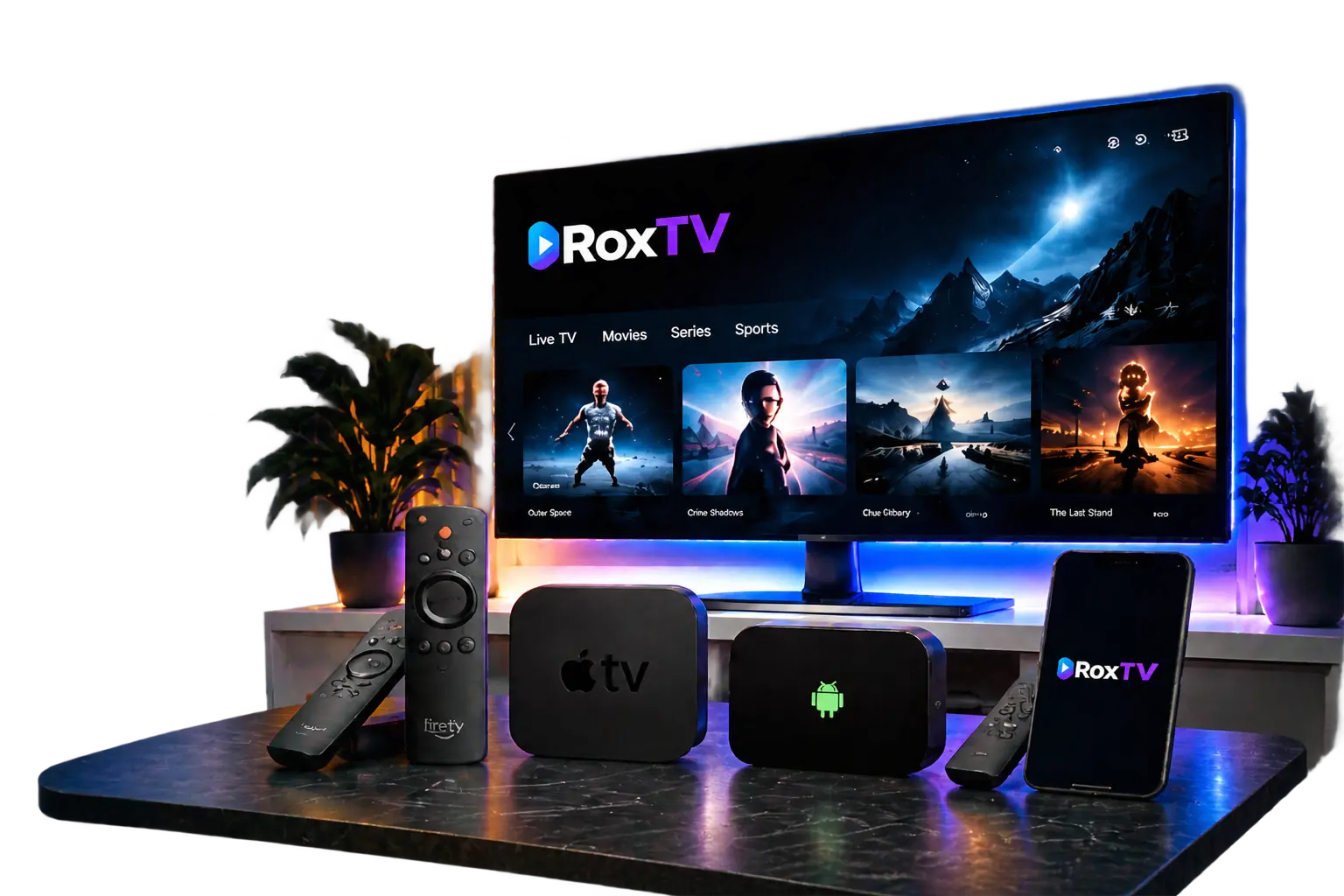
ROXTV SETUP CENTER

Your Device.
Your Guide.
Premium IPTV.

Every device works differently. That’s why we created simple setup guides for every way you watch RoxTV — from Smart TVs and streaming devices to IPTV apps.

✓ Smart TVs ✓ Firestick ✓ Apple TV ✓ IPTV Apps ✓ Mobile Devices
RoxTV setup devices

Set Up and Start Watching in 3 Simple Steps

01

Choose Your Device

Select your TV, streaming device, or IPTV app.
→
02

Follow The Guide

Get step-by-step installation instructions.
→
03

Start Streaming

Connect your RoxTV details and enjoy your content.
SMART TV SETUP GUIDES

How to Set Up IPTV on Your Smart TV

Follow our step-by-step Smart TV installation guides. Learn how to set up IPTV apps on Samsung and LG Smart TVs and connect your IPTV subscription in minutes.
Samsung

How to Set Up IPTV Smarters Pro on Samsung Smart TV

IPTV Smarters Pro provides Samsung Smart TV users with an easy way to watch live TV, sports, movies, and series with a clean and simple interface.
01

Turn On Your Samsung Smart TV

Start by powering on your Samsung Smart TV. You will arrive at the Samsung home screen where you can access apps and settings.
02

Open the Apps Section

From the Samsung home screen, navigate to the Apps section. This is where you can browse and install available applications.
03

Search for IPTV Smarters Pro

Inside the Samsung App Store, select the search bar, type “IPTV Smarters Pro”, and choose the application from the results.
04

Install IPTV Smarters Pro

Click Install to begin the download. The installation process usually takes less than a minute.
05

Accept the License Agreement

Open IPTV Smarters Pro after installation. When the license agreement appears, click Agree to continue.
06

Login With Your IPTV Details

Enter your IPTV subscription details. Add your M3U URL or use the credentials provided after activation.
RoxTV Expert Tip If channels or schedules do not appear correctly, refresh your EPG from the app settings. A wired Ethernet connection can also improve streaming stability, especially for live sports.
LG Smart TV

Install IPTV Smarters Pro on LG Smart TV in Minutes

Set up IPTV Smarters Pro directly from the LG Content Store and connect your IPTV subscription for live TV, movies, and sports.
01

Turn On Your LG Smart TV

Start your LG Smart TV. You will arrive at the LG Home page where all apps and settings are available.
02

Open the Apps Page

From the home screen, navigate to the Apps section. This gives access to the LG Content Store.
03

Search IPTV Smarters Pro

Inside the LG Content Store, select the search bar, type “IPTV Smarters Pro”, and choose the app.
04

Install the Application

Click Install and wait for the application to be added to your LG Smart TV.
05

Accept the License Agreement

Open IPTV Smarters Pro and click Agree when the license agreement appears.
06

Connect Your IPTV Subscription

Enter your M3U URL or IPTV subscription details. Once connected, your live TV, movies, and sports will load.
RoxTV Expert Tip LG Smart TV users can also explore IBO Player as another IPTV option. If the app is not available in your region, an external streaming device can provide additional compatibility.
STREAMING DEVICE SETUP

How to Set Up IPTV on Your Streaming Device

Follow our step-by-step guides for Firestick, Apple TV, and Roku. Connect your IPTV player and start watching live TV, movies, and sports.
Firestick

How to Set Up IPTV on Amazon Fire TV Stick

Install your IPTV application on Firestick and connect your RoxTV subscription details.
01

Open Firestick Home Screen

Turn on your Firestick and access the main home screen.
02

Install Downloader

Search and install Downloader from the Amazon App Store.
03

Install Your IPTV Player

Use Downloader or the app store to install your IPTV application.
04

Login With IPTV Details

Enter your Xtream Codes information or M3U playlist details.
RoxTV Expert Tip Enable a strong Wi-Fi connection or Ethernet adapter for smoother live sports streaming.
Apple TV

Configure IPTV App on Apple TV in Minutes

Add your IPTV playlist using Xtream Codes or M3U and load your channels instantly.
01

Open Apple TV App Store

Search for your preferred IPTV player application.
02

Install IPTV Player

Select Get and open the application after installation.
03

Add New Playlist

Select Xtream Codes or M3U playlist depending on your subscription.
04

Load Your Channels

Your live TV, movies, series, and EPG will appear automatically.
RoxTV Expert Tip Xtream Codes usually provides the easiest setup experience on Apple devices.
Roku

How to Set Up IPTV Mirroring on Roku

Use screen mirroring or supported playlist methods to enjoy IPTV on Roku devices.
01

Connect Roku to Your Network

Make sure Roku and your device are connected to the same Wi-Fi network.
02

Enable Screen Mirroring

Open Roku settings and allow screen mirroring from your mobile or PC.
03

Open Your IPTV App

Start your IPTV application and play your preferred content.
04

Connect and Start Streaming

Mirror your device to Roku and enjoy your channels.
RoxTV Expert Tip A stable internet connection is important for HD and 4K streaming on Roku.
IPTV APP SETUP GUIDES

Set Up Your IPTV App Step by Step

Choose your IPTV player and follow the simple setup instructions. Connect your subscription and start watching live TV, movies, and series.
Smarters Pro

How to Set Up IPTV Smarters Pro

One of the most popular IPTV players with support for Live TV, Movies, Series, and EPG.
01

Install IPTV Smarters Pro

Download the application on your supported device.
02

Open the App

Accept the license agreement and continue.
03

Select Xtream Codes API

Choose Login with Xtream Codes API for the easiest setup.
04

Enter Your IPTV Details

Add your server URL, username, and password provided after activation.
RoxTV Expert Tip Refresh your EPG from settings if your TV guide does not load correctly.
Smarters Lite

Install Smarters Player Lite in Minutes

Available on Apple TV, iPhone, iPad, Android phones, tablets, and Android TV.
01

Download Smarters Player Lite

Install the app from the App Store or Google Play Store.
02

Open Login Screen

Choose Login with Xtream Codes API.
03

Add Subscription Details

Enter name, username, password, and server URL.
04

Load Your Content

Your channels, movies, series, and EPG will load automatically.
TiviMate

How to Set Up TiviMate IPTV Player

A popular IPTV player designed for Android TV devices and boxes.
01

Install TiviMate

Download TiviMate from your Android TV app store.
02

Select Add Playlist

Open the application and choose Add Playlist.
03

Choose Xtream Codes Login

Enter your server address, username, and password.
04

Update EPG

Refresh the TV guide from Settings → EPG.
IPTVX

How to Set Up IPTVX on iPhone & Apple TV

IPTVX is a modern IPTV player for Apple devices. It supports Xtream Codes and M3U playlists, allowing you to watch live TV, movies, and series with a smooth interface.
01

Install IPTVX

Open the App Store on your iPhone or Apple TV. Search for IPTVX and install the application.
02

Open New Playlist

Launch IPTVX, open the side menu, and select New Playlist.
03

Select Playlist Type

Choose Xtream if you received a server URL, username, and password. Choose M3U/M3U8 if you received a playlist link.
04

Enter Your IPTV Details

Add your playlist name and RoxTV subscription details, then save your playlist.
05

Load Your Content

IPTVX will download your live channels, movies, series, and available EPG information automatically.
RoxTV Expert Tip For Apple devices, Xtream Codes usually provides the simplest setup. If your channels or guide do not appear, refresh your playlist inside IPTVX settings.
IBO Player

Install and Activate IBO Player on LG Smart TV

IBO Player is a popular IPTV player for Smart TVs. It provides a simple interface for watching live TV, movies, sports, and series with your RoxTV subscription.
01

Open LG Content Store

Turn on your LG Smart TV and open the LG Content Store from the home screen.
02

Search for IBO Player

Use the search bar and type “IBO Player”. Select the application from the results.
03

Install IBO Player

Click Install and wait for the application to be added to your LG Smart TV.
04

Accept the License Agreement

Open IBO Player after installation and accept the license agreement to continue.
05

Activate Your Device

Open IBO Player and note your MAC Address and Device Key. Send these details to RoxTV support for playlist activation.
06

Load Your IPTV Playlist

After activation, restart the app. Your channels, movies, and series will load automatically.
RoxTV Expert Tip Keep your MAC Address and Device Key saved. They are required if you reinstall IBO Player or change devices.
XCIPTV

How to Set Up XCIPTV Player on Smart TV

XCIPTV Player is a fast and simple IPTV application designed for Smart TVs and Android TV devices. It supports live TV, movies, series, and EPG with easy remote control navigation.
01

Download XCIPTV Player

Open the App Store on your Smart TV or Google Play Store on Android TV. Search for XCIPTV Player and install the application.
02

Open XCIPTV Player

Launch the application after installation. Wait for XCIPTV Player to load the activation screen.
03

Get Your Device Details

The app will display your MAC Address and Device Key. Keep this screen open because these details are required for activation.
04

Send Details to RoxTV

Send your MAC Address and Device Key to RoxTV support. We will connect your IPTV subscription to XCIPTV Player.
05

Restart and Start Streaming

After activation, restart XCIPTV Player. Your channels, movies, series, and TV guide will load automatically.
RoxTV Expert Tip Do not close the activation screen before saving your MAC Address and Device Key. These details are needed to complete the setup correctly.
Android Box

How to Set Up IPTV on Android TV Box

Android IPTV boxes provide a flexible way to watch live TV, movies, and series. With the right IPTV player, you can connect your RoxTV subscription in just a few steps.
01

Open Google Play Store

Turn on your Android TV box and open the Google Play Store from the home screen.
02

Install an IPTV Player

Search for a compatible IPTV player such as TiviMate, IPTV Smarters Pro, or XCIPTV Player and install it.
03

Open the IPTV Application

Launch the application and choose the option to add a playlist or login with Xtream Codes.
04

Enter RoxTV Details

Enter the server URL, username, and password provided after your RoxTV activation.
05

Load Channels and EPG

Allow the app to download your live TV channels, movies, series, and TV guide information.
RoxTV Expert Tip For 4K streaming and live sports, use Ethernet whenever possible. A quality Android box with a stable connection provides the best experience.
MAG Box

Set Up RoxTV Portal on MAG IPTV Box in Minutes

MAG boxes use a portal-based system. Instead of installing an app, your device connects directly using the MAC Address activation method.
01

Find Your MAC Address

Turn on your MAG box and locate the MAC Address from the device network settings.
02

Send Your Device Information

Send your MAC Address to RoxTV support so your IPTV portal can be activated.
03

Open Portal Settings

Go to Settings, Servers, and Portal Settings on your MAG device.
04

Enter RoxTV Portal URL

Enter the portal address provided by RoxTV and save the settings.
05

Restart Your MAG Box

Restart the device and your channels will load automatically after activation.
RoxTV Expert Tip MAG boxes do not use IPTV apps. Your MAC Address is the key information needed to connect your device.
Formuler

How to Set Up IPTV on Formuler Box

Formuler devices offer a premium IPTV experience with the built-in MYTVOnline application designed for live TV streaming.
01

Open MYTVOnline

Turn on your Formuler device and open the MYTVOnline application.
02

Add New Portal or Playlist

Choose the option to add your IPTV service details.
03

Enter RoxTV Information

Enter the required server information provided with your RoxTV subscription.
04

Update Channels and EPG

Allow MYTVOnline to load your channels, categories, movies, series, and TV guide.
05

Start Streaming

Your Formuler box is ready. Browse live TV and enjoy your content.
RoxTV Expert Tip Formuler devices work best with a wired connection for smooth sports streaming and high-quality playback.
TROUBLESHOOTING CENTER

Fix Common IPTV Streaming Issues

Quick solutions for buffering, missing TV guides, slow loading, and IPTV app performance problems. Follow these simple steps to improve your RoxTV experience.
Cache Fix

How to Clear Cache on IPTV App

Clearing cache removes temporary files that can cause buffering, slow loading, missing EPG data, or app freezing.
01

Open Settings or App Info

Open the Settings icon or App Info section on your IPTV application or device.
02

Access Storage Options

Navigate to Storage where cache and app data can be managed.
03

Clear Cache

Select Clear Cache and wait a few seconds while temporary files are removed.
04

Restart the App

Close the IPTV app completely and reopen it to reload channels and EPG data.
05

Check Streaming Performance

Test your channels and confirm that playback and TV guide loading are working correctly.
RoxTV Expert Tip Clearing cache does not remove your subscription, playlists, or favorites. It only removes temporary files.
EPG Fix

How to Refresh EPG on Smarters Player Lite

The Electronic Program Guide shows channel schedules and program information. Refreshing it can fix missing or outdated guide data.
01

Open Settings

Open Smarters Player Lite and select the Settings icon.
02

Select Automation

Open Automation settings to manage playlist and EPG updates.
03

Enable Automatic Updates

Enable automatic playlist updates and automatic EPG updates, then save changes.
04

Manually Update EPG

Return to the home screen and select Update EPG. Wait until the process finishes.
05

Restart Your App or Device

Restart Smarters Player Lite or your device to apply the updated TV guide information.
RoxTV Expert Tip If your guide still shows “No information”, check that your playlist or portal details are correct and active.
Buffering Fix

How to Improve IPTV Streaming Performance

Buffering can come from network stability, device performance, or connection setup. These steps help improve playback quality.
01

Check Your Internet Connection

Make sure your internet connection is stable enough for IPTV streaming, especially for HD and 4K content.
02

Use Ethernet When Possible

A wired connection can provide better stability than Wi-Fi, especially for live sports and high-quality streams.
03

Restart Your Network Equipment

Restart your router and settings to refresh the connection.
04

Check Your IPTV Setup

Confirm your app login details, playlist information, and device setup are correct.
LEARN MORE ABOUT IPTV

Helpful IPTV Guides

New to IPTV? Learn how IPTV works, improve your streaming setup, and get the most from your RoxTV experience.

What Is IPTV and How Does It Work?

Learn what IPTV is, how it works, the difference between IPTV and traditional TV, and how to get started. Read IPTV Guide →

Do You Need a VPN for IPTV?

Learn how a VPN can help with privacy, connection stability, and common IPTV streaming issues. Read VPN Guide →

Ready to Start Watching RoxTV?

Choose your device, follow the setup guide, and start streaming your favorite content.