

How to Clear Cache on IPTV App

Clear Cache on IPTV app for smooth streaming and better performance
In this article:

Clearing cache is one of the easiest ways to fix buffering, slow loading, or freezing issues in your IPTV app. If your channels lag, playlists fail to load, or EPG data is missing, a quick cache reset can make your streaming experience smooth again.

Why You Should Clear Cache on Your IPTV App

Every time you use an IPTV app, it stores temporary files, images, and channel data to improve performance. Over time, this cache can become cluttered or corrupted, causing:

  • Channels to buffer or freeze
  • Slow loading of playlists and EPG
  • Incorrect or missing program guides
  • Occasional app crashes

Clearing cache removes these temporary files while keeping your IPTV subscription, login, and favorites intact. Clearing cache can instantly restore your smooth, premium experience without missing a beat.

Step 1: Open Settings or App Info

Tap the Settings icon (gear) or App Info on your IPTV app home screen. This works for Android, iOS, and Smart TVs.
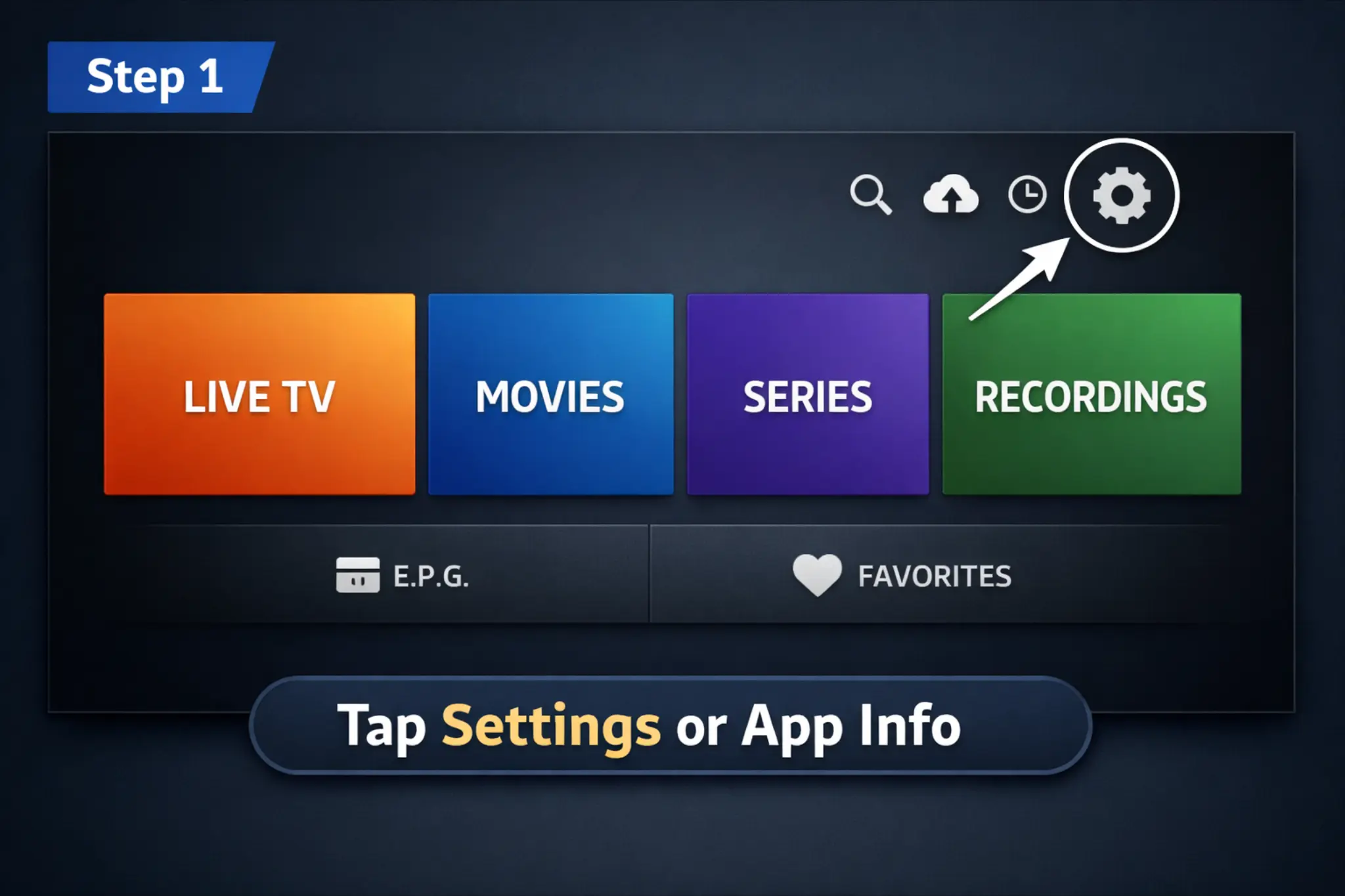
IPTV app home screen with the Settings icon highlighted and labeled 'Tap Settings or App Info.'

Step 2: Access Storage Options

Navigate to Storage in Settings or App Info. This opens the section where cache and app data can be managed.
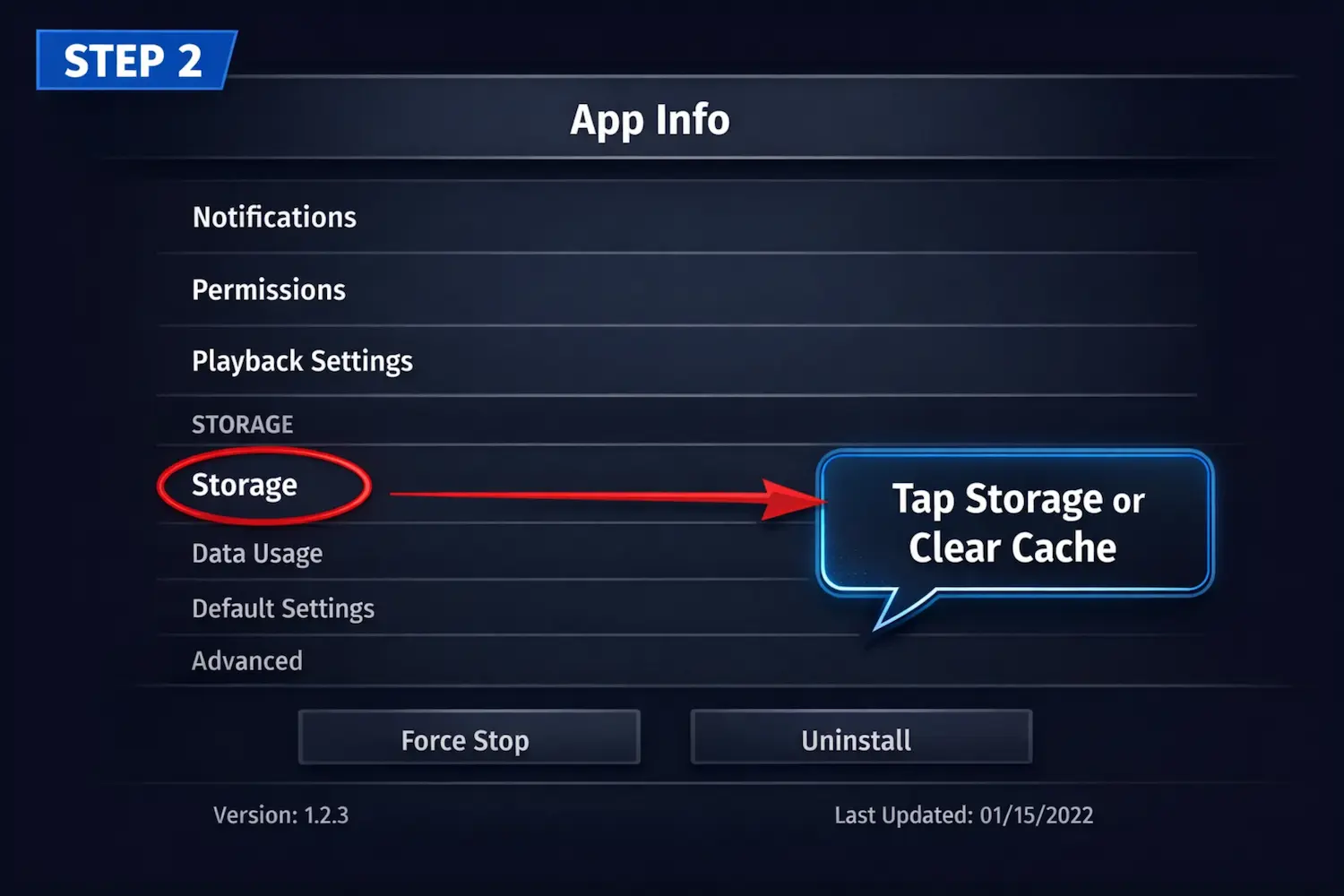
Access Storage options in IPTV app settings

Step 3: Clear Cache (In Progress)

Initiate cache clearing and wait a few seconds for temporary files to be removed. You will see a progress bar showing the process.
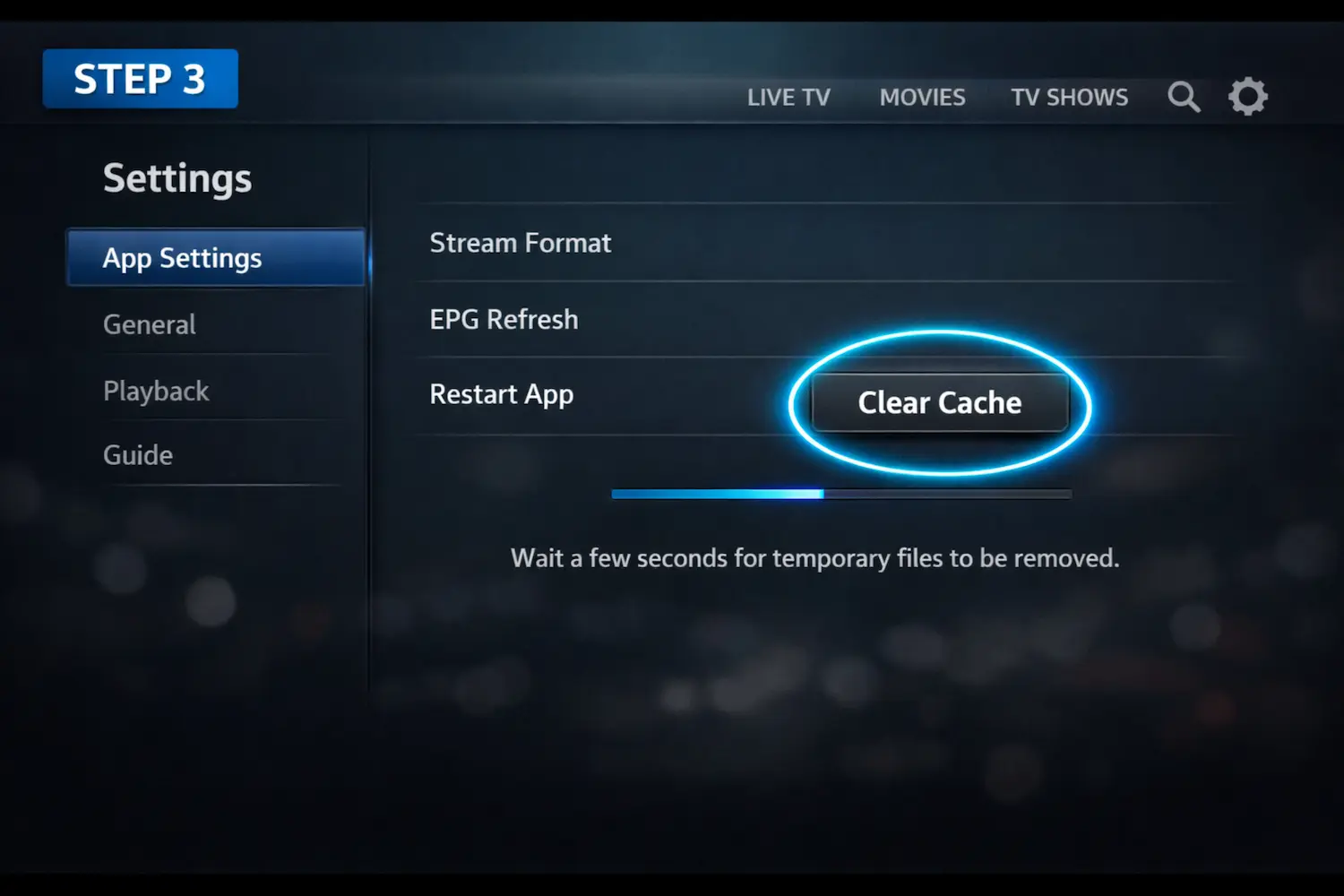
IPTV app Clear Cache in progress with progress bar showing temporary files being removed

Step 4: Restart the App

Close the app completely and reopen it to reload your playlists, channels, and EPG data.
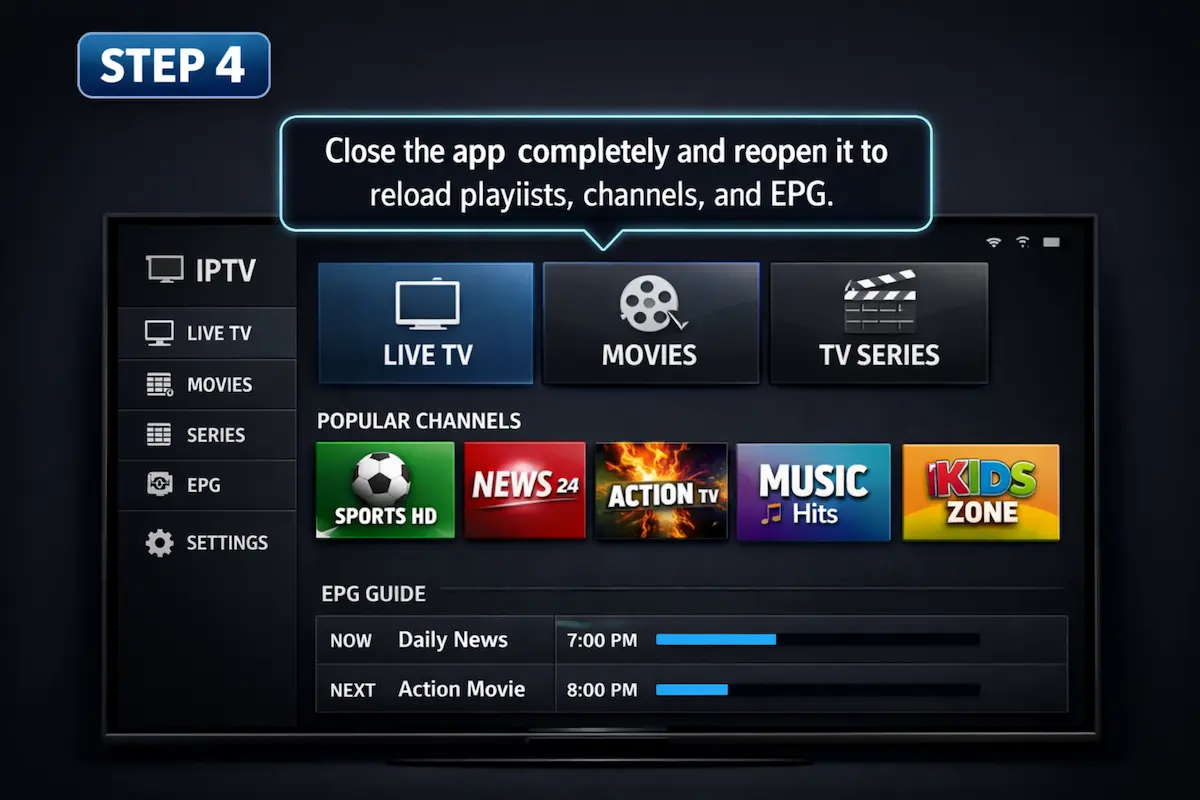
IPTV app home screen after reopening, showing playlists and channels loaded

Step 5: Verify Streaming Performance

Test a few channels to ensure buffering is reduced. Make sure channels load smoothly and the EPG displays correctly.

IPTV app showing smooth channel playback to verify streaming performance after clearing cache

Quick Tips for Smooth IPTV Performance

  • Clear cache once every 2–3 weeks.
  • Keep your IPTV app updated.
  • Restart your device regularly.
  • Limit other apps running in the background.
  • Persistent buffering? Read our IPTV buffering guide for step-by-step fixes.
  • ✅ Pro Tip: If you’re using a premium IPTV service like RoxTV, clearing cache can instantly resolve most temporary playback issues without needing to reinstall the app.

FAQ

Will clearing cache delete my channels or login?

No, cache only stores temporary files. Your playlists and favorites remain intact.

Once every 2–3 weeks, or whenever buffering, freezing, or slow loading occurs.

This may be due to slow internet or a weak Wi-Fi signal. Using a premium service like RoxTV minimizes this issue.

For most Android/Firestick apps it works perfectly. Some iOS or Smart TV apps may require internal cache clearing or app reinstall.

Ready to Experience Premium IPTV 4K in Canada?

Start your IPTV subscription today with instant activation, secure checkout, and reliable streaming you can count on.