

Looking for a smooth way to watch live TV, sports, and movies on your Android TV?
TiviMate IPTV Player is one of the most trusted apps for IPTV streaming thanks to its clean design and fast performance.
It works perfectly with our IPTV service, and the setup only takes a few minutes, no technical skills needed.
Whether you’re using a Smart TV or Android Box, once installed you’ll have organized channels,
a full TV guide, and a much better viewing experience compared to basic players.
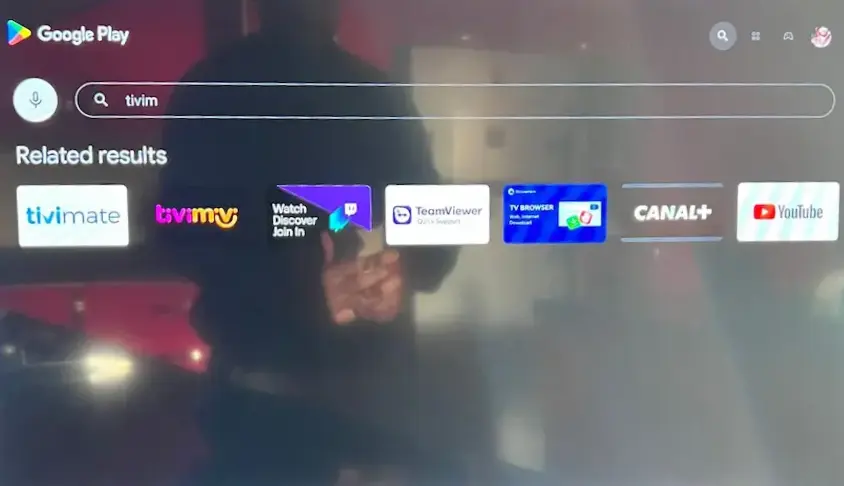
Turn on your Android TV and open the Google Play Store.
Use the search bar and type TiviMate.
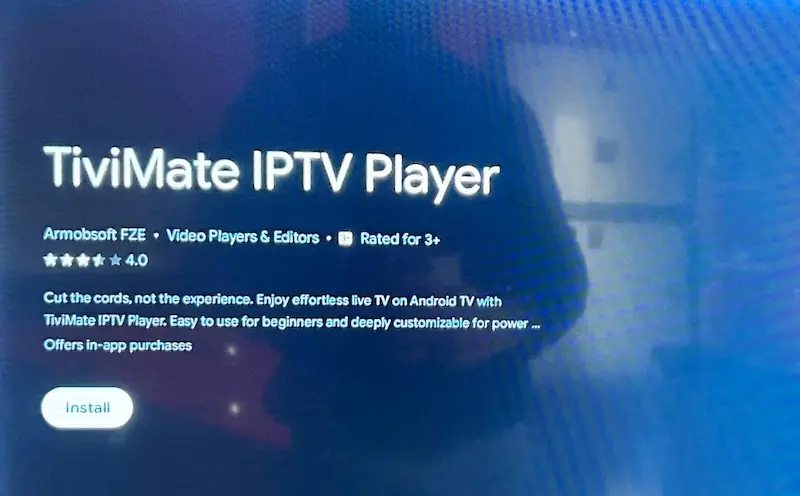
Select the app and press Install.
The download usually takes less than a minute.
Once finished, open it from your home screen.
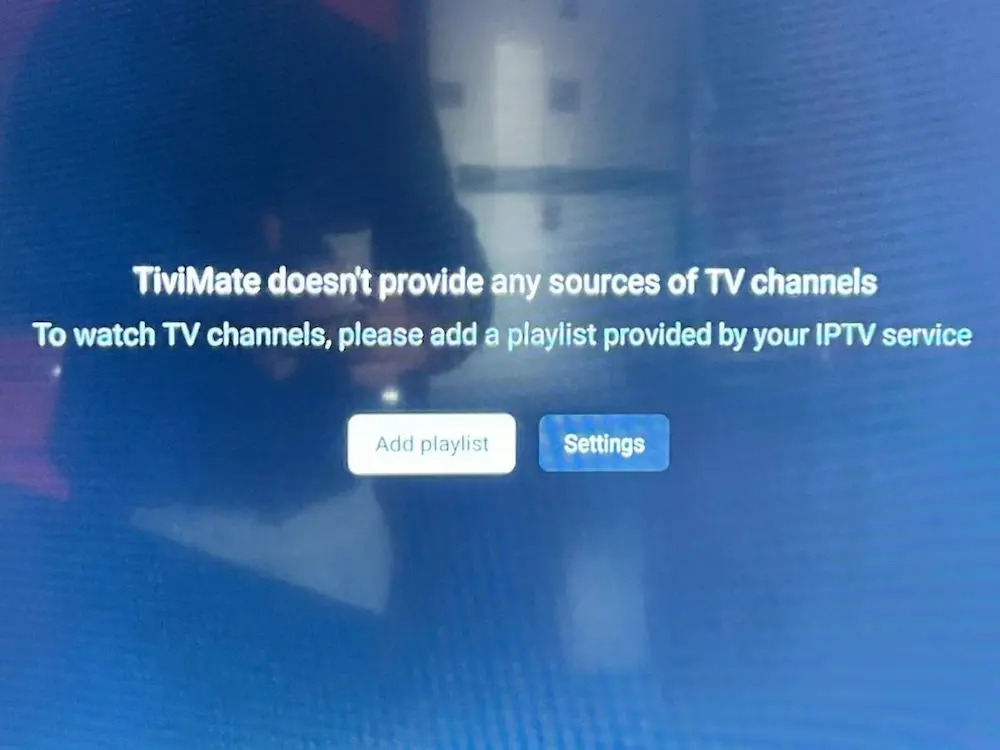
When the app opens, you’ll see a message saying it doesn’t include channels.
This is normal, you now need to connect your IPTV subscription.
Tap Add Playlist to continue.
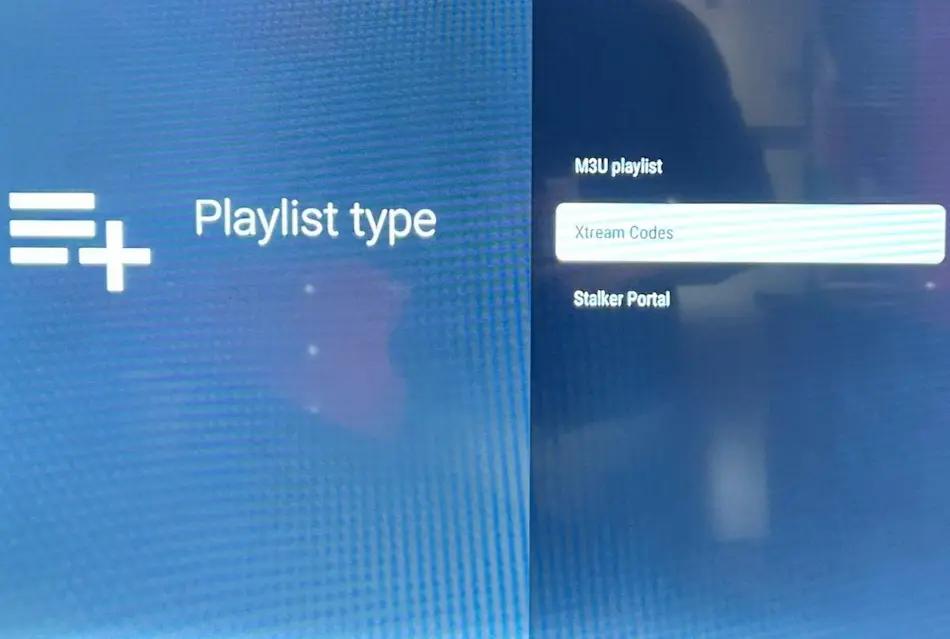
Select Xtream Codes Login.
This method automatically loads channels, movies, and categories in the right order
and is generally faster than manual links.
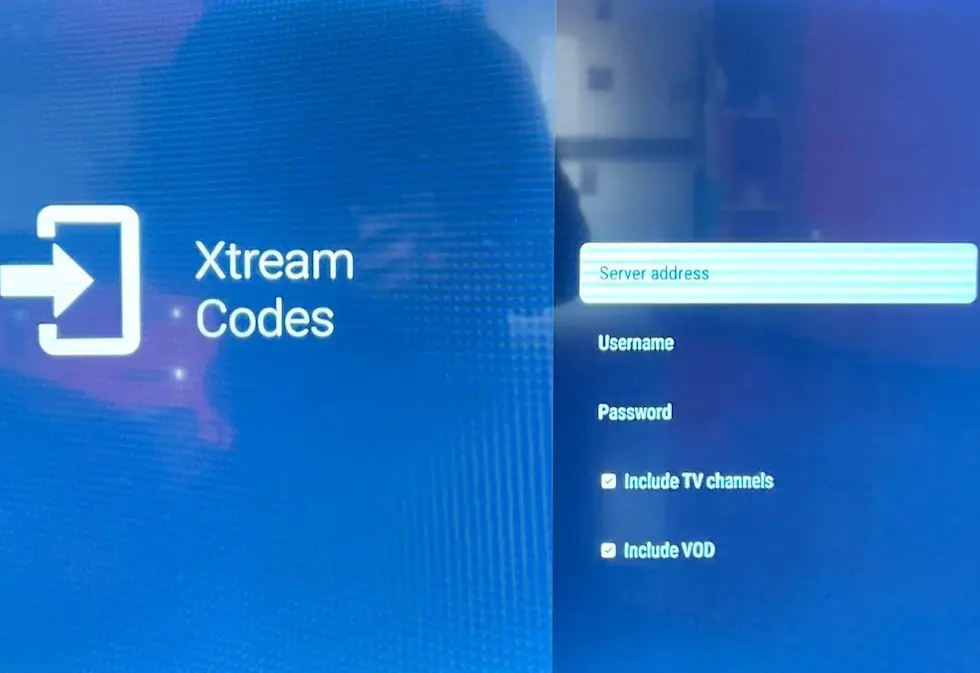
Press Next and allow the app a minute to load everything.
The first launch can take slightly longer, that’s normal.
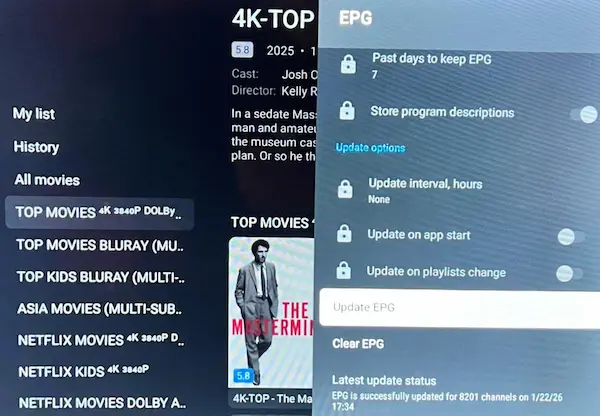
The EPG is the channel schedule that shows what’s playing now and what’s coming next.
Refreshing it ensures program names, times, and categories display correctly.
Without an update, the guide may appear empty or outdated.
To refresh:
Settings → EPG → Update
You can also check our guide on how to refresh epg on smarters player lite
Channels not loading?
Double-check your login details and internet speed. Restart the app once after setup.
Playback buffering?
Switch from Wi-Fi to Ethernet if possible, or restart your router.
Guide missing?
Update the EPG from settings. This solves most cases instantly.
TiviMate turns any Android TV into a clean and organized entertainment hub.
Once your playlist is connected, you’ll notice faster navigation,
better channel structure, and a smoother overall experience.
When paired it with RoxTV, everything feels simple and seamless,
letting you enjoy your content without interruptions.