
Already have login details and want to start watching? First identify whether your provider sent three separate Xtream fields or a single M3U link. That choice determines which UHF screen to use. The UHF player can be installed on both Apple devices, but it does not supply a television subscription of its own.
This walkthrough follows the actual screens from installation through a first playback test. It also covers the small points that cause most setup delays: an incomplete server address, a hidden space in a pasted link, a missing program guide and a second stream that exceeds your plan allowance.
Quick route through setup
- Install the correct UHF app from the App Store.
- Check whether your credentials are Xtream or M3U.
- Enter the details on iPhone and save the source.
- Test a live channel and its guide listing.
- Install UHF on Apple TV and add the same source.
- Check live playback again, one screen at a time.
Before opening the App Store
UHF is a player: your IPTV provider supplies access to channels, and the app displays a compatible playlist. Have your Apple Account, a working internet connection and your provider’s credentials ready. Check the current App Store listing for the iOS and tvOS versions supported by your devices.
Keep the login privately accessible while you work. An M3U address can contain a username and password inside the URL, so avoid showing it in a screenshot or sharing it in a public message. If you still need access information, review RoxTV IPTV plans or ask RoxTV support which format your account uses. Also find out how many simultaneous streams your subscription permits.
Decode the details you received
Do not guess from the words “IPTV login.” Look at the shape of the information. A server or portal address plus a separate username and password belongs in Xtream. One long web address containing playlist parameters belongs in M3U/M3U8. If you also received a guide address, save it for the EPG field when UHF offers one.
| Details in your message | Select in UHF | Fields to complete |
|---|---|---|
| Server address, username, password | Xtream | Source name and three credentials |
| One full playlist link | M3U/M3U8 | Source name and complete link |
| Playlist link plus guide link | M3U/M3U8 | Playlist and optional EPG addresses |
In Xtream, keep the server field limited to the server address: do not paste an entire M3U URL into it. You can label the source RoxTV so it is easy to recognise later. If your provider sent one link, read what an M3U playlist is and how it works before copying it. Paste the entire address, without a trailing space.
iPhone setup: work through the visible screens
An iPhone keyboard makes it convenient to enter and correct long credentials. Finish this setup first if you want to check your access before reaching for the Apple TV remote.
1 · Locate the app
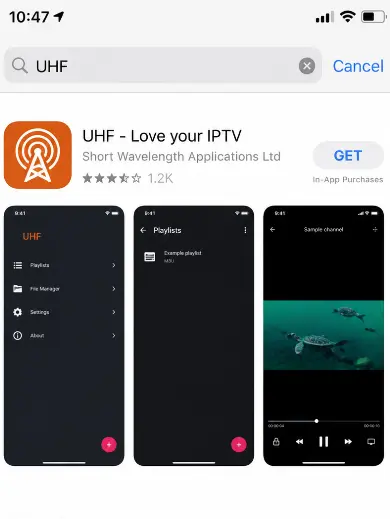
Open the App Store and search for “UHF – Love your IPTV.” Check the app name and listing before tapping Get. Once installation finishes, open the app. If it is absent from the results, check your device software and App Store region before searching again.
2 · Start an empty source
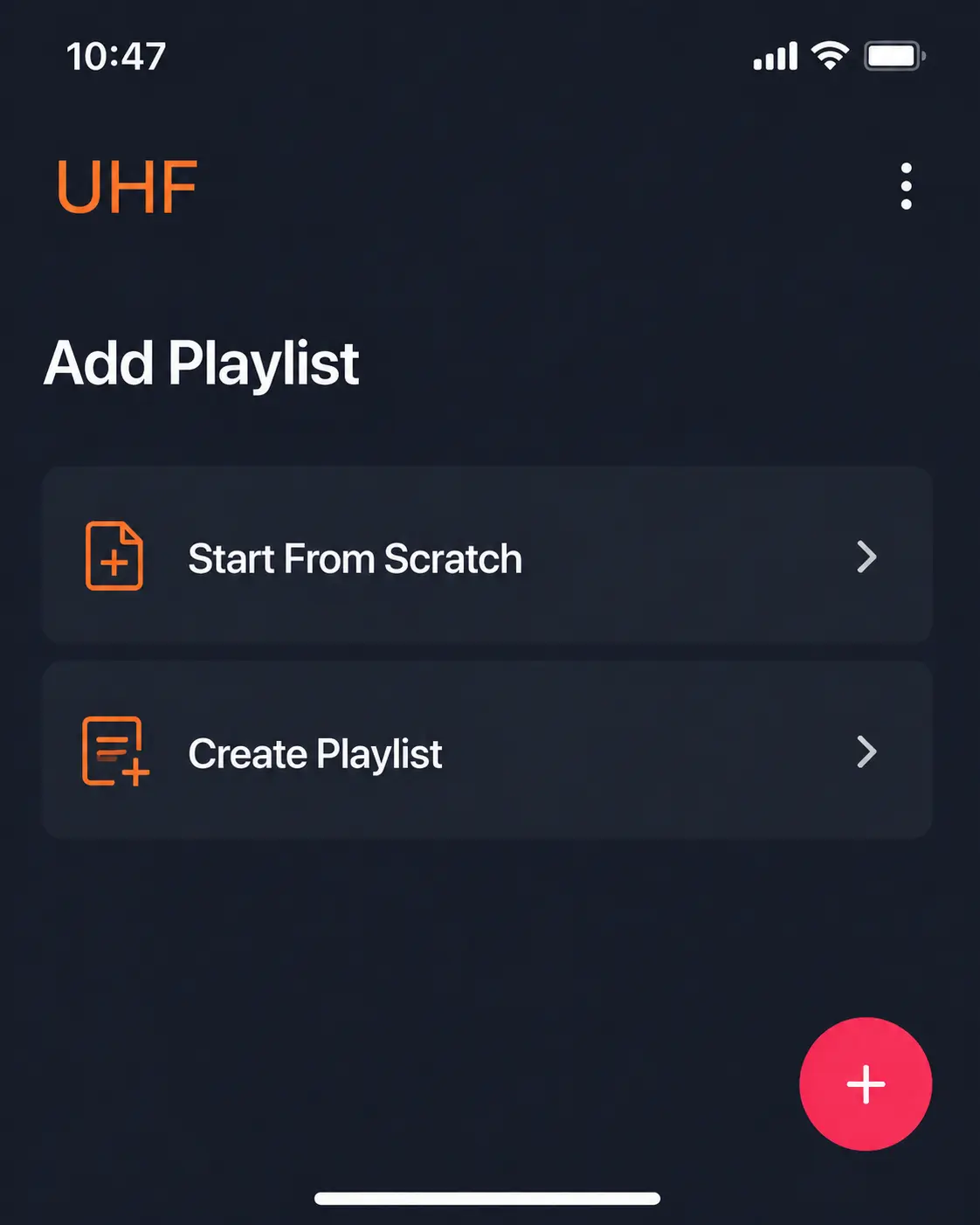
Choose Add Playlist or the equivalent starting option shown in your version of UHF. Some releases label the initial screen Start From Scratch, Add Source or Create Playlist. You are adding your provider’s information, not looking for channels supplied by UHF.
3 · Match the source type
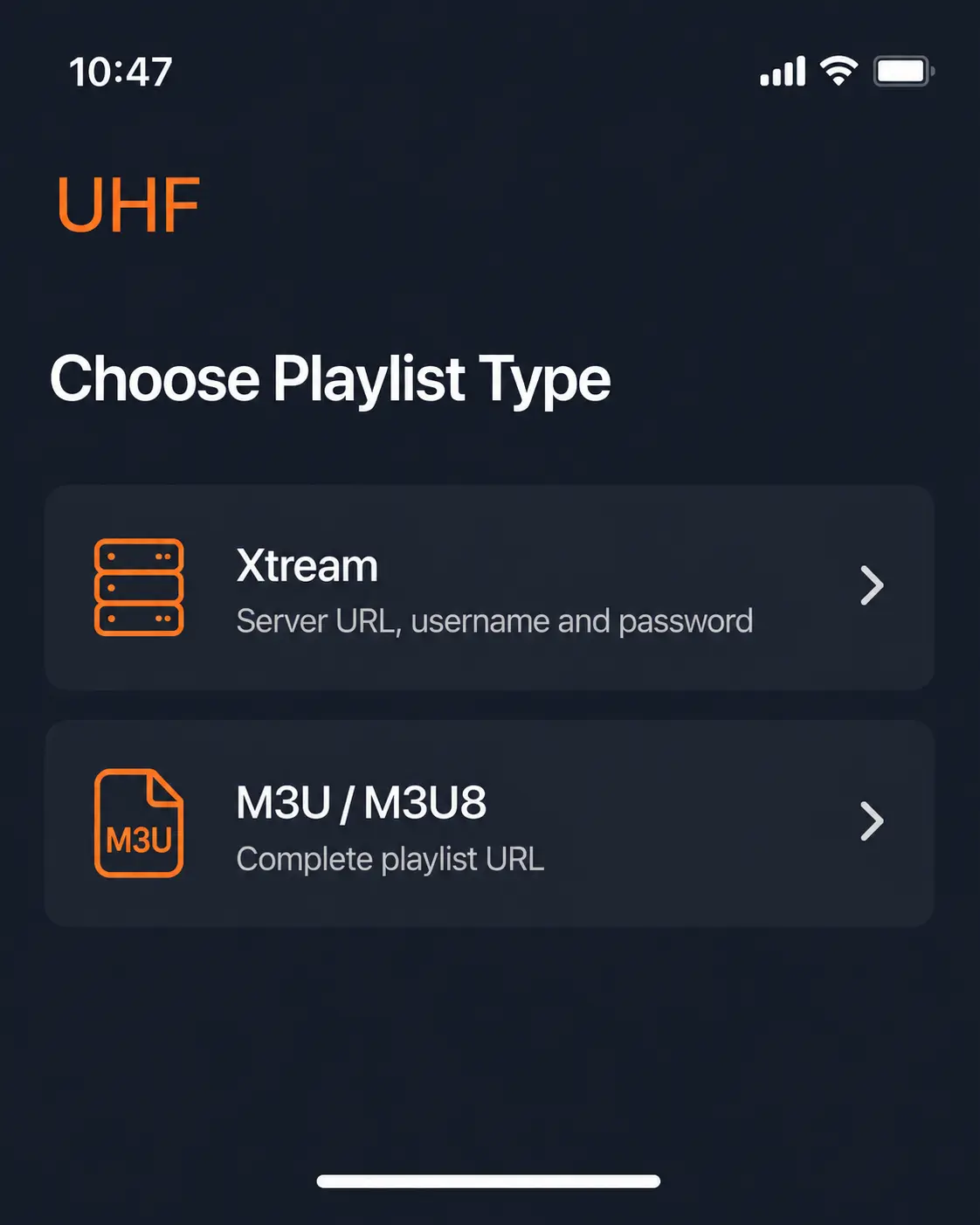
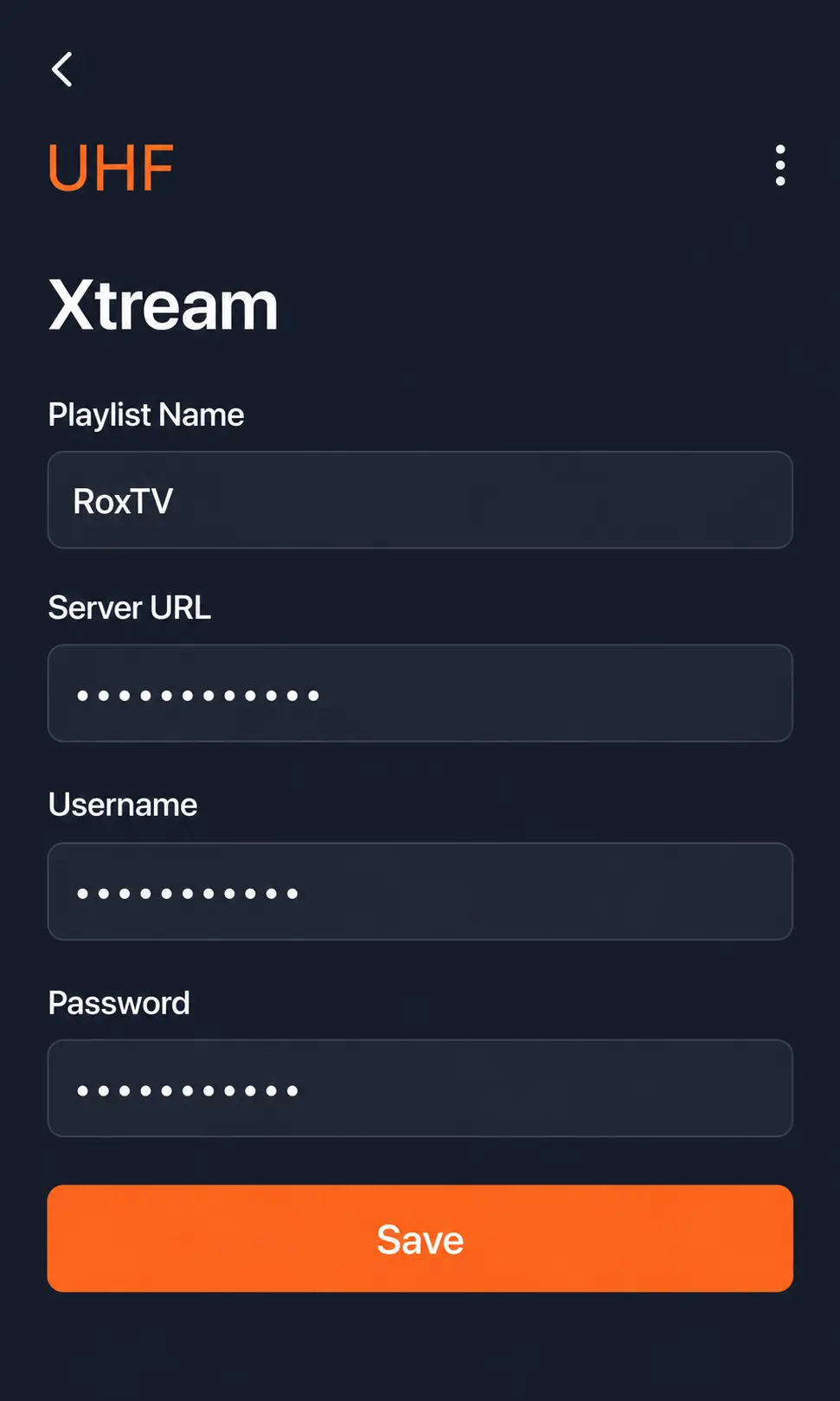
Select Xtream when you have separate server, username and password fields. Select M3U/M3U8 when you have a complete URL. Going back to correct the type now is easier than diagnosing an invalid playlist later.
4 · Enter and check the credentials
For Xtream, give the source a name and enter the supplied server address, username and password in their individual fields. Preserve characters and capitalisation exactly. A portal address with a port number must retain that port. The source name is only a label; it is not your username.
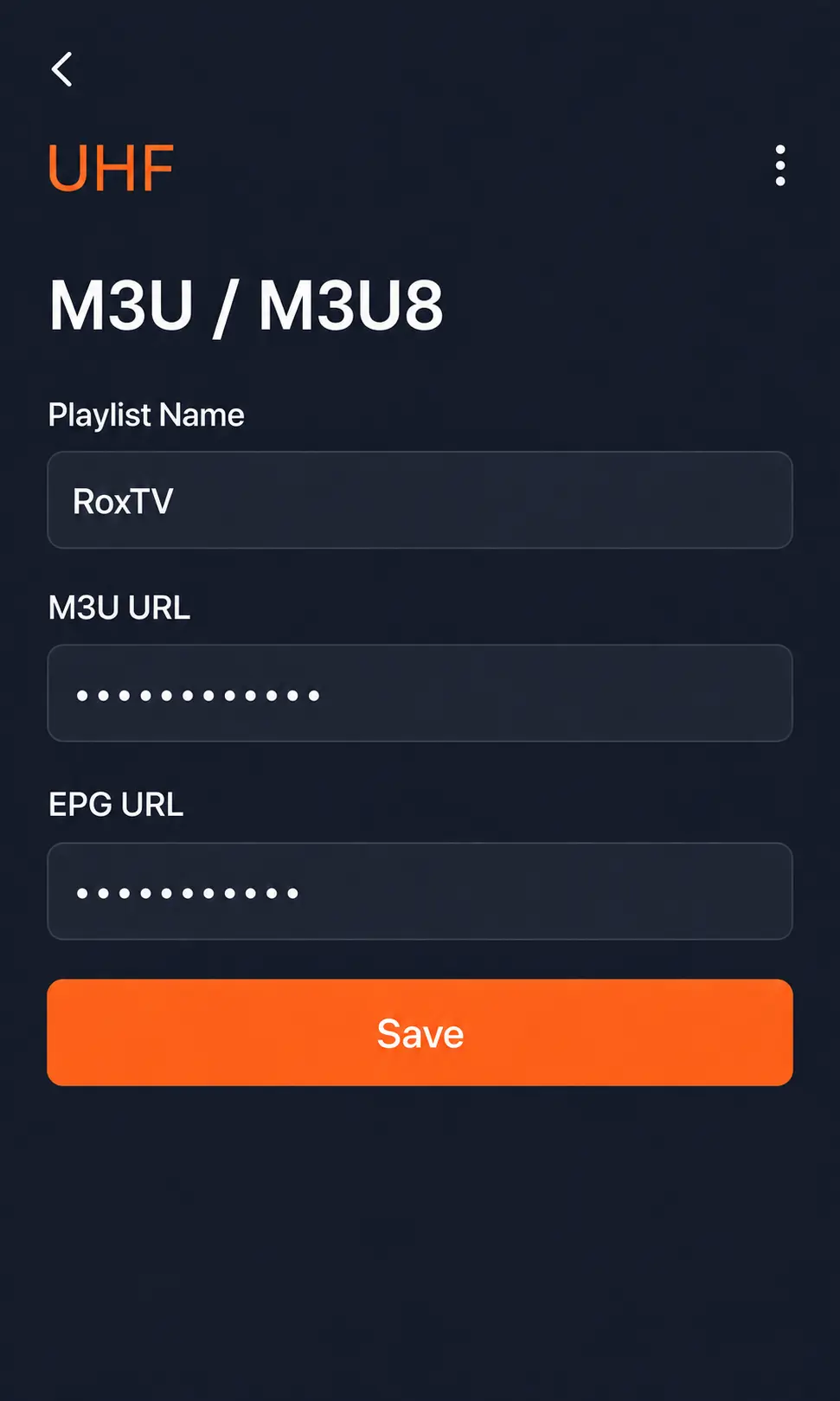
For M3U, name the source and paste the complete playlist URL. Add an EPG URL separately if your provider gave you one and the screen has that option. Review the beginning and end of a long pasted link for missing characters or accidental spaces. Save or continue when the fields match the original message.
5 · Let the import finish
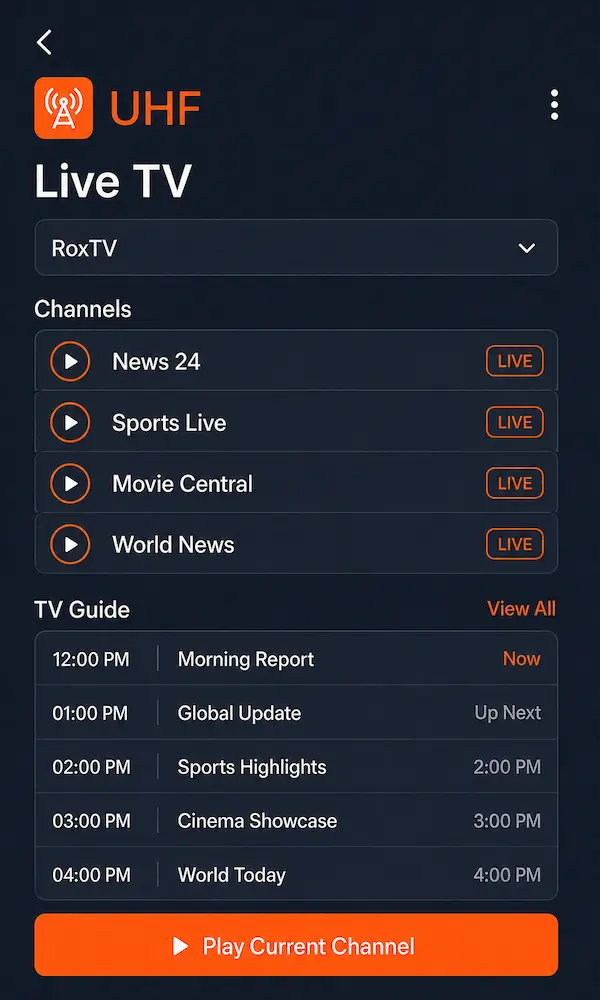
Wait until UHF builds its channel categories. Open one familiar live station, look for a matching guide entry and try an included on-demand item if your plan offers one. Check audio and captions while that content is playing. The RoxTV channel list can help you choose specific stations to verify.
Apple TV setup: repeat the test on the television
The television flow uses the same provider details, but a remote changes how you type. Check every punctuation mark in long URLs before saving.
1 · Find UHF on Apple TV
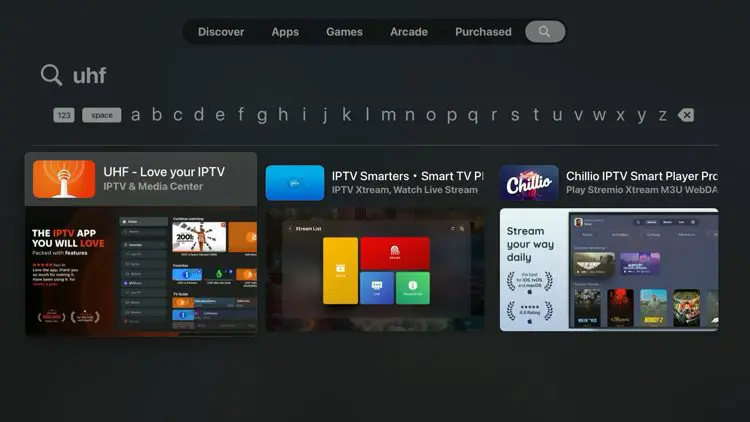
Open the Apple TV App Store and search the exact app name. Confirm that the result is UHF – Love your IPTV before selecting it. If no result appears, check for available tvOS updates.
2 · Download and open it
Select Get, allow installation to finish, then choose Open. This is an App Store installation; there is no need to sideload an application or alter your Apple TV.
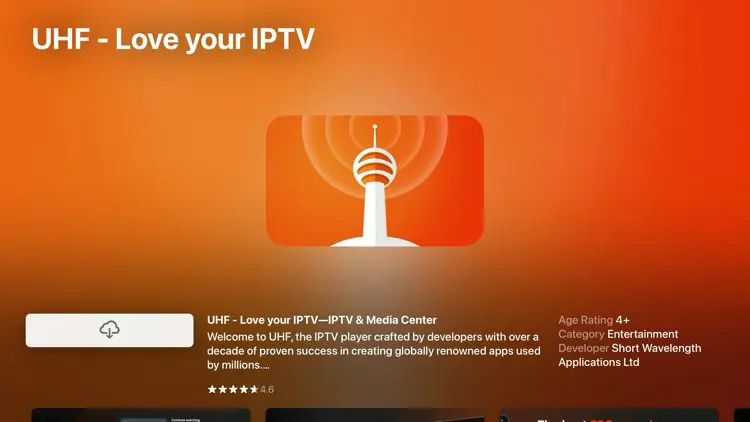
3 · Create the television source
From UHF’s starting screen, choose Add Playlist. If several starting options appear, look for the one that adds your own service details.
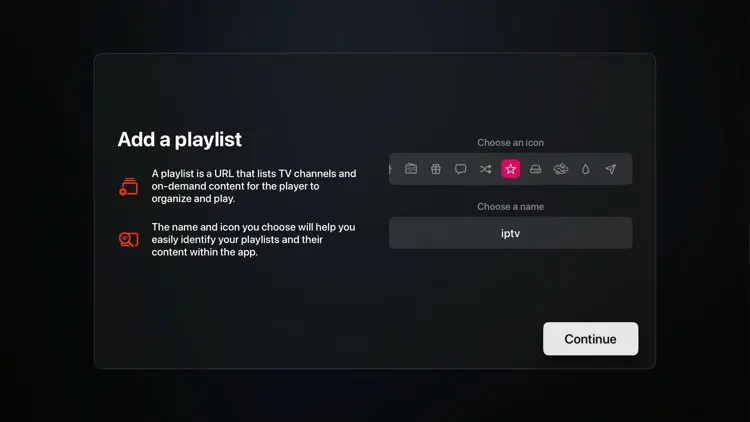
4 · Choose the correct login route
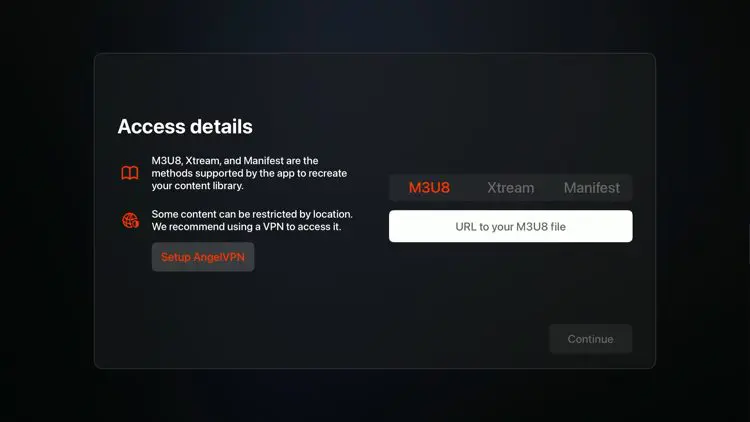
5 · Fill the fields carefully
Enter the server address, username and password for Xtream, or the complete link for M3U. Add the EPG address only if one was provided. Double-check slashes, colons, port numbers and similar-looking characters before proceeding.
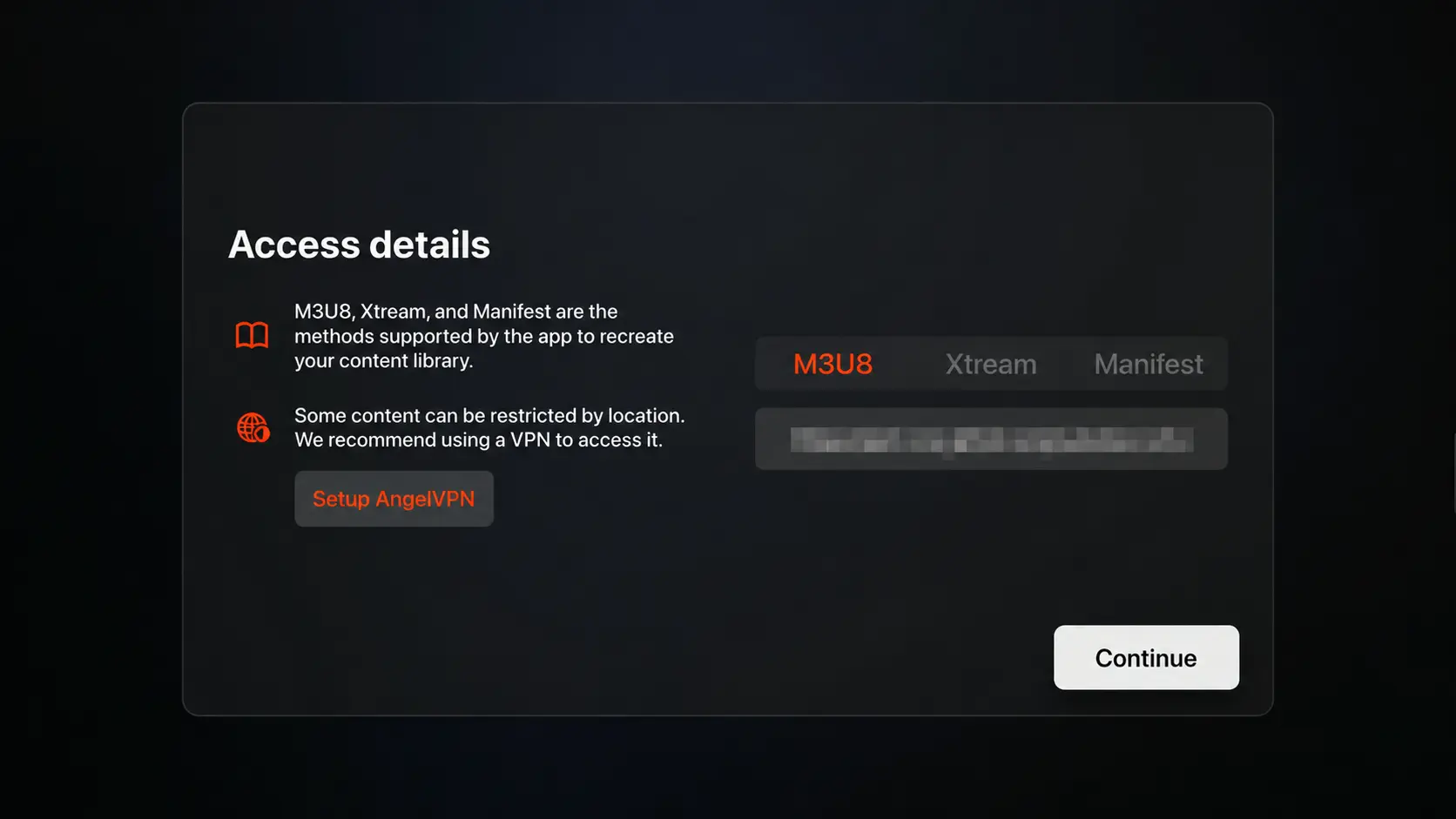
6 · Save and wait
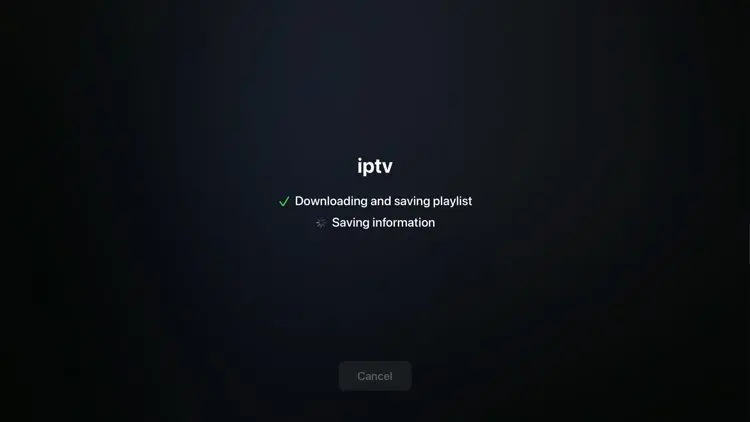
Confirm the playlist, then allow the channel and guide information to import. Do not assume a blank guide during the initial load means the login has failed.
7 · Play something familiar
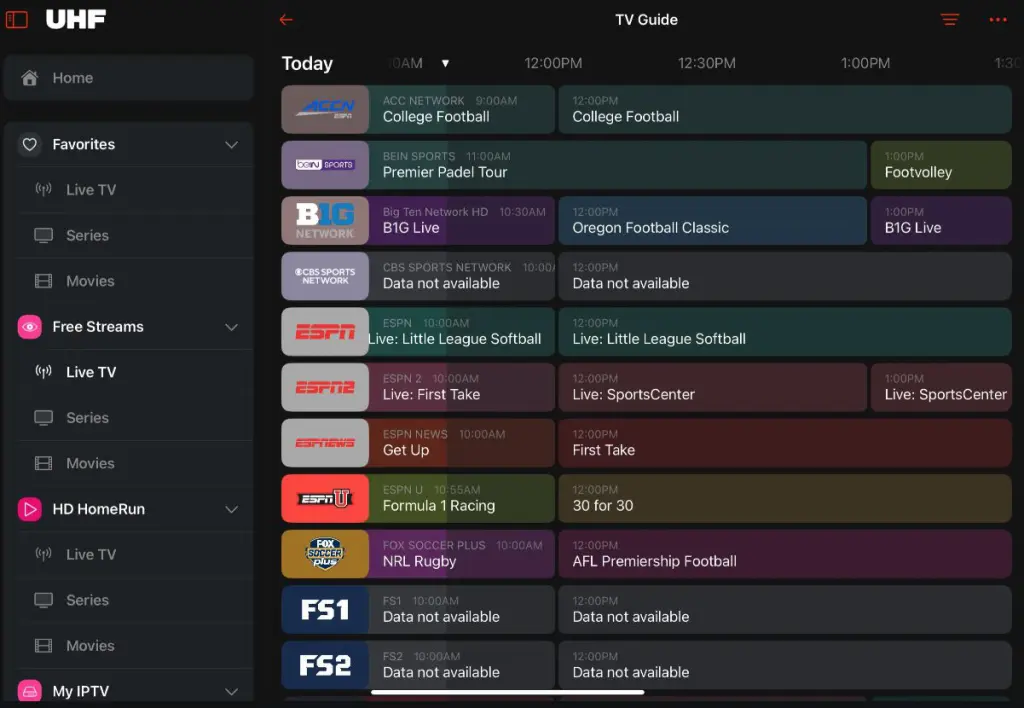
Try one important live channel, browse its category and open the guide. Check sound and subtitle options if offered. Then try another type of content so you can distinguish a single channel problem from a broader issue.
Typing a long link on Apple TV
When a television text field opens, a nearby iPhone may display an Apple TV keyboard prompt. You can type the server address or M3U link on the phone instead of using the remote one character at a time. Keep both devices on the appropriate local setup and follow the on-screen prompt if it appears.
Two installations, one connection allowance
UHF can be installed on your iPhone and Apple TV, but the right to play two streams at once comes from your IPTV plan. A successful login on both devices does not by itself confirm two simultaneous connections. Before checking the television, close playback on the phone; then start the Apple TV channel.
If each device works alone but playback fails when both are active, check the allowed connection count in your RoxTV plans details. This test helps separate an account limit from a typo or a device issue. Keep track of any other phones or televisions using the same access.
Settings to adjust after basic playback works
Start with the default player configuration. Changing stream format, buffering and other options at the same time makes it hard to know which choice improved or damaged playback. First verify several live channels and one on-demand title, then change one setting and repeat the same test.
- Stream format: Consider an alternative only if a particular source fails or behaves inconsistently.
- Buffer: A zero-buffer option may start quickly while making an unstable connection harder to watch. Compare real playback, not only start time.
- Languages: Check available English or French tracks and captions inside the playing program.
- Favourites: After the channel list is confirmed, save your regular stations and hide categories you rarely use.
Remember that the available tracks, streams and guide entries come from the source. A player setting cannot create a subtitle or channel that was never supplied.
When something does not work
| What you see | First check | Next action |
|---|---|---|
| App not found | App name and software version | Update the Apple device and repeat the search. |
| Login rejected | Source type, URL and credentials | Compare every character with the provider message. |
| Some channels absent | Import completion and categories | Refresh the source; ask about the specific station. |
| Guide empty | Loading time and EPG field | Refresh and check whether a separate guide URL was supplied. |
| One station pauses | Other channels on the same device | Record the station and time for support. |
| All stations pause | Network and other device traffic | Use the RoxTV buffering guide to isolate the cause. |
| Phone works; TV does not | Concurrent streams and TV credentials | Stop phone playback and check the TV entry again. |
| App closes | App and device updates | Restart; save access details before reinstalling. |
A repeatable buffering check
When playback stalls, run the same short experiment before deleting your playlist. Try three unrelated live channels and one on-demand item. Stop other active streams, pause major downloads and compare Wi-Fi with Ethernet if your device supports it. If the issue happens only at a particular hour, write that down.
Record the device, channel, time and whether all content was affected. That information helps support locate the problem far faster than a message saying “UHF buffers.” For network checks and additional fixes, follow the RoxTV buffering guide. A single faulty station and an entire household connection issue need different remedies.
When to ask RoxTV for help
Contact support when credentials are rejected after careful re-entry, your access appears inactive, a specific category is missing, or the guide remains blank after a refresh. Include the device model, app version and what you already tested. Never put a full playlist link or password in a public post.
The RoxTV contact and WhatsApp page is also the place to confirm whether your account uses Xtream or M3U and how many devices can play concurrently. Explain whether the issue occurs on iPhone, Apple TV or both.
Try the complete experience before a longer plan
A player opening successfully proves very little about day-to-day viewing. Test your most important channel, its guide listing, a movie or series if included, the remote navigation and your preferred audio language. Do the checks during your usual evening viewing hours, when your network may be busier.
Then repeat on Apple TV after closing the iPhone stream. Confirm that your household can navigate the categories and that the plan permits the number of viewers you need. If one program fails, document it and test a second channel before deciding the entire setup is unsuitable.
Other Apple players to consider
UHF may not be everyone’s preferred interface. Browse best IPTV apps for Apple TV and iPhone to compare navigation and features, or see how to install IPTVX on iPhone and Apple TV. Use your own compatibility and account details when evaluating another player.
UHF questions, answered
Does installing UHF give me channels?
No. UHF displays a playlist that you provide. You need separate authorized access and compatible login details.
Do I have to pay for UHF?
Check the current App Store listing for the app’s free and paid features. Any app purchase is separate from your IPTV service.
Which iPhone or Apple TV versions can run it?
Requirements can change with app updates. Check the current listing on each device and update iOS or tvOS if necessary.
Should I pick Xtream or M3U?
Pick the format of the credentials you were sent: separate server, username and password for Xtream, or a complete URL for M3U/M3U8.
Can both Apple devices use the same source?
Usually you can add compatible details to both. Concurrent playback still depends on the provider’s connection allowance.
Why are channel names visible but guide times missing?
The playlist may have imported before its program data. Refresh, allow the guide to load and check any separate EPG URL supplied with your account.
Will a VPN fix an invalid password?
No. A VPN does not correct a mistyped address, expired access or an incorrect source type. Verify the credentials first.
Should I use AirPlay instead of the Apple TV app?
Install the native Apple TV app for a direct television setup. Check the current UHF feature list if AirPlay support is important to you.
Finish with a real viewing test
Once your iPhone source works, install UHF on Apple TV and repeat the channel, EPG and audio checks there. Keep the account’s stream allowance in mind if both screens will be used in your household. If you cannot complete a step, describe the exact screen and error to RoxTV support.
Ready to test UHF with RoxTV?
Check access details and your preferred channels before choosing a plan length.