IPTVX is one of the most popular IPTV player apps for Apple devices, officially available on iPhone and Apple TV. It supports Xtream API, M3U, and M3U8 playlists, making it a reliable option for streaming live TV, movies, and series. Keep in mind that IPTVX is a player only, so you will need valid login details from your IPTV provider. If you need a subscription that works with IPTVX, you can use RoxTV with Xtream or M3U playlist details. This guide shows you how to install IPTVX on iPhone and Apple TV, add your IPTV subscription, and optimize your setup for smoother streaming.
Table of Contents
What You Need Before You Start
- An iPhone or Apple TV
- The IPTVX app installed
- Your IPTV subscription details from your provider, which may include:
- Xtream Codes / Xtream API (server URL, username, password)
- M3U / M3U8 playlist URL
- A stable internet connection for uninterrupted streaming
Tip: Xtream Codes is usually the easiest option on Apple devices, but M3U and M3U8 playlists also work well. Need IPTV login details for IPTVX? View RoxTV plans to get started with a compatible Xtream or M3U setup.
How to Install IPTVX on iPhone
Step 1: Install IPTVX
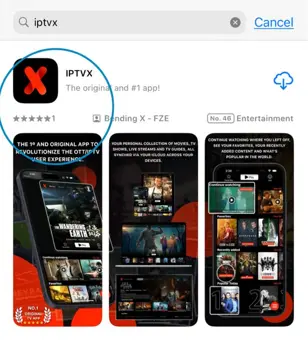
- Open the App Store on your iPhone.
- Search for IPTVX and install the app.
Step 2: Open the Side Menu
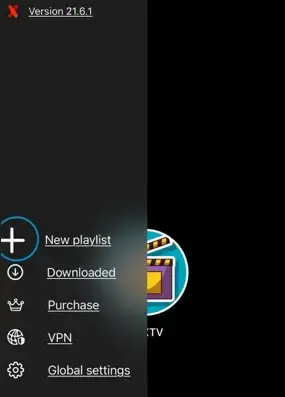
- Launch IPTVX.
- Open the side menu.
- Select New Playlist.
Step 3: Choose Playlist Type
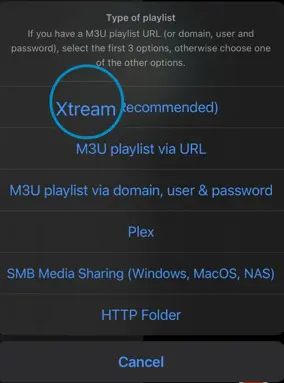
- Select Xtream if your provider gave you a server URL, username, and password.
- Select M3U / M3U8 if your provider gave you a playlist link.
Step 4: Enter Your IPTV Details
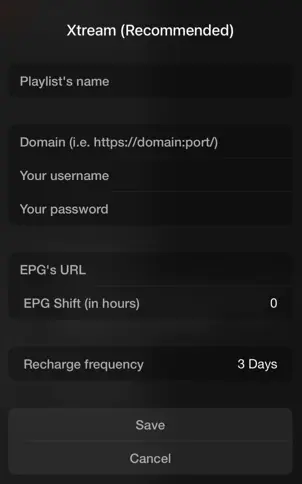
- Enter your playlist name.
- Add your server URL, username, and password for Xtream, or paste your M3U URL.
- Tap Save.
Step 5: Load Your Channels
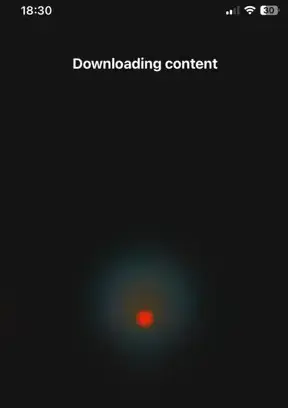
- IPTVX will download your playlist content.
- Once the process finishes, your channels, movies, and series will appear.
How to Install IPTVX on Apple TV
Step 1: Search for IPTVX in the App Store
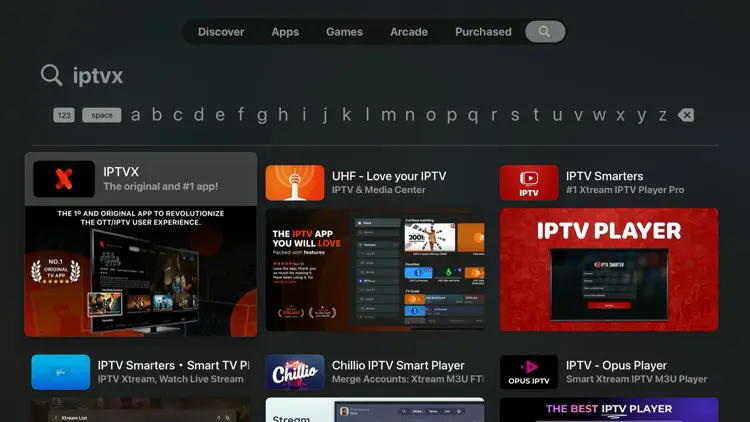
- Turn on your Apple TV and open the App Store.
- Search for IPTVX.
Step 2: Install IPTVX
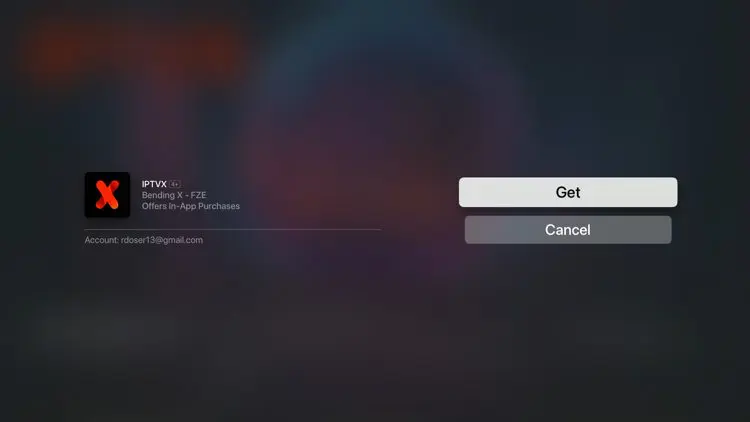
- Select the app and click Get to install.
Step 3: Open IPTVX
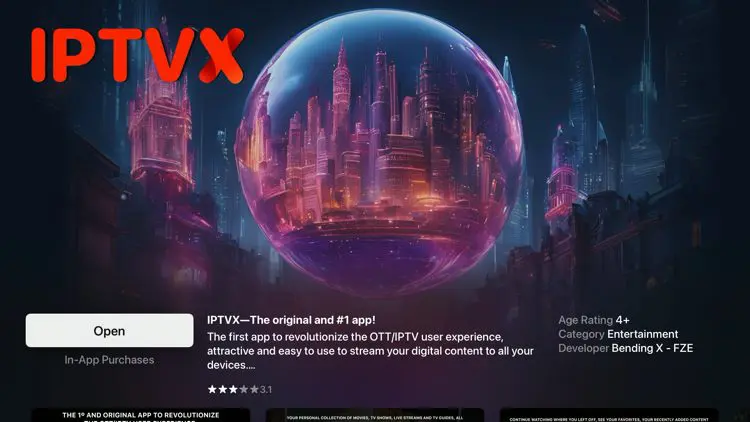
- Open IPTVX from your home screen.
Step 4: Add a New Playlist
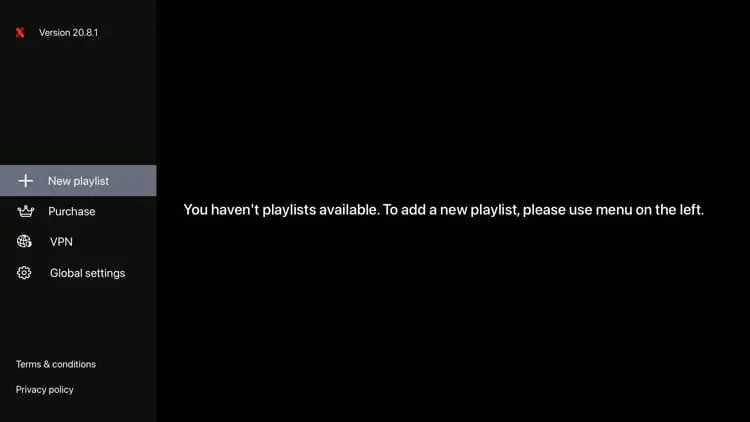
- Select New Playlist from the menu.
Step 5: Enter Your Playlist Details
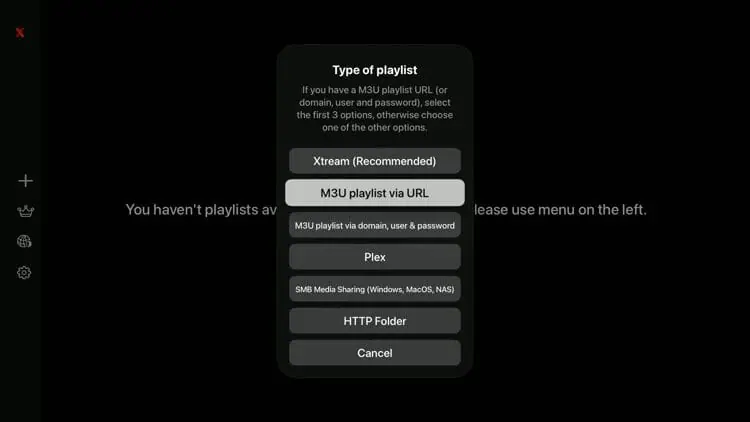
- Select Xtream or M3U / M3U8.
- Enter your playlist name and IPTV login details.
- Add an EPG URL if your provider includes one.
- Click Save and wait for IPTVX to load your content.
Looking for another IPTV player for Apple devices? You can also check our complete guide on
how to install UHF App on Apple TV and iPhone.
UHF Player is another popular option for Apple TV and iPhone users, supporting IPTV playlists such as M3U and Xtream Codes.
How to Set Up IPTVX After Installation
After installing IPTVX, the next step is adding your IPTV subscription. Most users will choose either Xtream Codes or an M3U playlist.
- Use Xtream Codes if your provider gave you a server URL, username, and password.
- Use M3U / M3U8 if your provider gave you a single playlist link.
- Add EPG if available for a better channel guide experience.
- Refresh the playlist after setup if channels or categories do not appear immediately.
If you are using RoxTV, your IPTVX setup can be completed with either Xtream or M3U details, depending on the format you prefer.
Xtream Codes vs M3U: Which Should You Use?
Xtream Codes is usually the best option for IPTVX on iPhone and Apple TV. It is easier to set up, better organized, and often provides better EPG support. M3U / M3U8 also works well in IPTVX, especially if your provider gives you a playlist URL instead of Xtream login details. However, it may require manual refresh in some cases.
- Use Xtream Codes if: you want the easiest setup and better playlist management.
- Use M3U / M3U8 if: your provider only gives you a playlist link.
Recommended: Use Xtream Codes on iPhone and Apple TV whenever possible for a smoother IPTVX setup.
Common IPTVX Setup Problems & Fixes
- No channels showing: Check that your server URL, username, password, or M3U link is entered correctly. Also confirm that your subscription is active.
- EPG not loading: Refresh your playlist in IPTVX settings and make sure your EPG URL is valid.
- Buffering or lag: Use a strong Wi-Fi connection or wired connection if possible. Close other apps using bandwidth. For more help, see how to stop IPTV buffering.
- App freezing or crashing: Restart the app or device and make sure IPTVX is updated to the latest version.
- Playlist not updating: Refresh the playlist manually and recheck your login details if the issue continues.
Best Setup Tips for Smoother Streaming
- Keep your IPTV login details saved in case you switch devices or need to reconnect your playlist.
- Use Xtream Codes on Apple devices for easier setup and better playlist management.
- Update IPTVX regularly to avoid bugs and compatibility issues.
- Restart your app after major playlist changes if channels or categories do not load properly.
Already installed IPTVX? Use your RoxTV IPTV plan to start streaming live TV, movies, and series on iPhone or Apple TV.
Final Thoughts
IPTVX is easy to install on iPhone and Apple TV, especially when using Xtream Codes. Once your playlist is added, you can stream live TV, movies, and series with a smoother and more reliable setup. If you need IPTV login details that work with IPTVX, you can view RoxTV plans here.